Wascer DB
Wascer DB
Wascer DB is a NoSQL database integrated directly into Wascer’s Server-Side Google Tag Manager (sGTM) environment. It provides persistent Key-Value storage on the server side, eliminating the dependency on third-party cookies and external services such as Firestore or Supabase.
With the growing blocking of third-party cookies by browsers and the restrictions imposed by regulations such as LGPD and GDPR, client-side data persistence has become increasingly fragile. Wascer DB solves this by transferring state storage to the server. Your data is not affected by cookie blocking policies, browser extensions, or user cache clearing.
In practice, you store JSON documents organized by unique keys within collections. Each document can contain up to 1 MB of structured data, and your container supports up to 10 million documents. Integration with sGTM is done via native templates (Writer Tag, Store Read Variable, reStore Variable) or via direct HTTP API no additional infrastructure required.
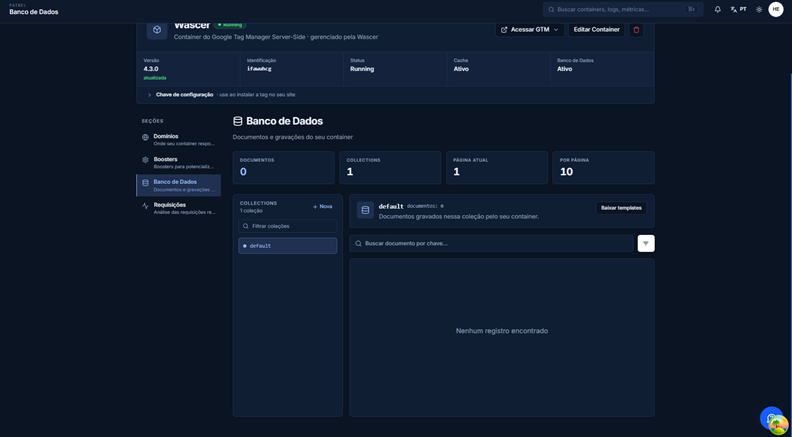
Wascer Dashboard — Database section with Active status, collections and container metrics
Benefits
- Server-side persistence: data stored on the server, immune to cookie blocking, ITP/ETP and ad blockers.
- Cross-session identification: recognizes users across multiple sessions without relying on client-side mechanisms. Ideal for long attribution windows.
- LGPD/GDPR compliance: on-demand deletion and anonymization. Fulfills data subject requests (Art. 18 LGPD / Art. 17 GDPR) directly via API or dashboard.
- Minimal latency: Wascer DB resides in the same infrastructure as your sGTM container. Read and write operations respond in milliseconds, with no round-trips to external services.
- Zero infrastructure setup: no need to provision databases, configure OAuth credentials or manage connections. One-click activation.
- Native sGTM templates: Writer Tag, Store Read Variable and ReStore Variable ready to use. Common scenarios require no custom code.
- Full HTTP API: GET, POST, PATCH and DELETE for programmatic integration with any backend, CRM or data pipeline.
- Security: data never exposed to the user’s browser. API Key authentication. Container-level isolation.
- Included cost: available on Pro plans and above at no additional charge per operation volume.
How it Works
Key-Value Architecture in sGTM
Wascer DB operates as a JSON document database, organized by unique keys (Document Keys) within collections (Collections). The structure is simple and straightforward:
- Collections: group documents by context (e.g.: user_profiles, attribution, capping).
- Documents: JSON objects identified by a unique key. Maximum size: 1 MB.
- Fields: accessible via key path (e.g.: data.segment, data.consent.analytics).
Data Model
{
  "document_key": "user_abc123",
  "collection": "user_profiles",
  "data": {
    "email_hash": "a1b2c3d4e5f6",
    "first_seen": "2026-01-15T10:30:00Z",
    "total_sessions": 14,
    "ltv": 2450.00,
    "consent": {"analytics": true, "marketing": false}
  },
}
Data Flow
1. The user’s browser sends a request (page view, event) to Wascer’s sGTM endpoint.
2. The sGTM container processes the event and, via Tag or Variable template, interacts with Wascer DB.
3. Wascer DB writes or retrieves the document associated with the given key (User ID, Client ID).
4. The retrieved data is injected into the event before firing destination tags (Google Analytics 4, Meta Conversions API, TikTok Events API, etc.).
How to Activate / Configure
Activate Wascer DB
1. Go to the Wascer dashboard at wascer.com and log in with your credentials.
2. Select the sGTM container where you want to enable Wascer DB.
3. Navigate to the “Database” section in the container sidebar (below “Boosters”).
4. Check the status: in the container header, the Database field should display Active. If not activated, simply activate it.
5. Confirm activation: Wascer DB will be immediately available for use via templates and API.
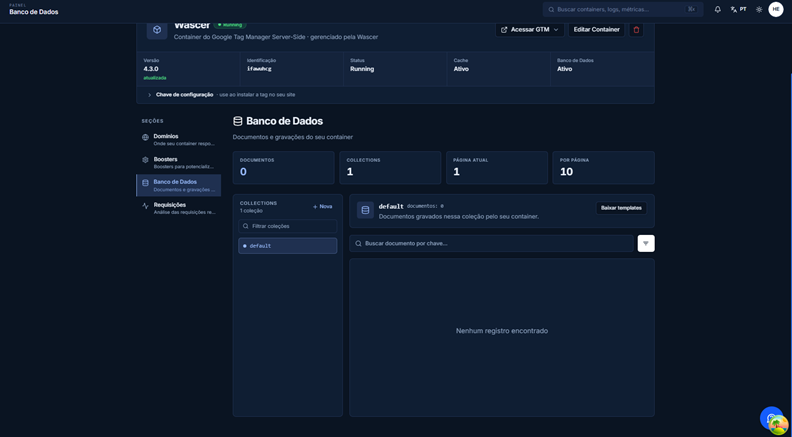
Wascer Dashboard — active Database section
Create Collections
After activation, create collections to organize your documents. A default collection is created automatically.
1. In the Database section, click the “+ New” button next to “Collections”.
2. In the New Collection modal, enter the name. Only letters, numbers, hyphens and underscores are allowed.
3. Click “Create” to confirm.
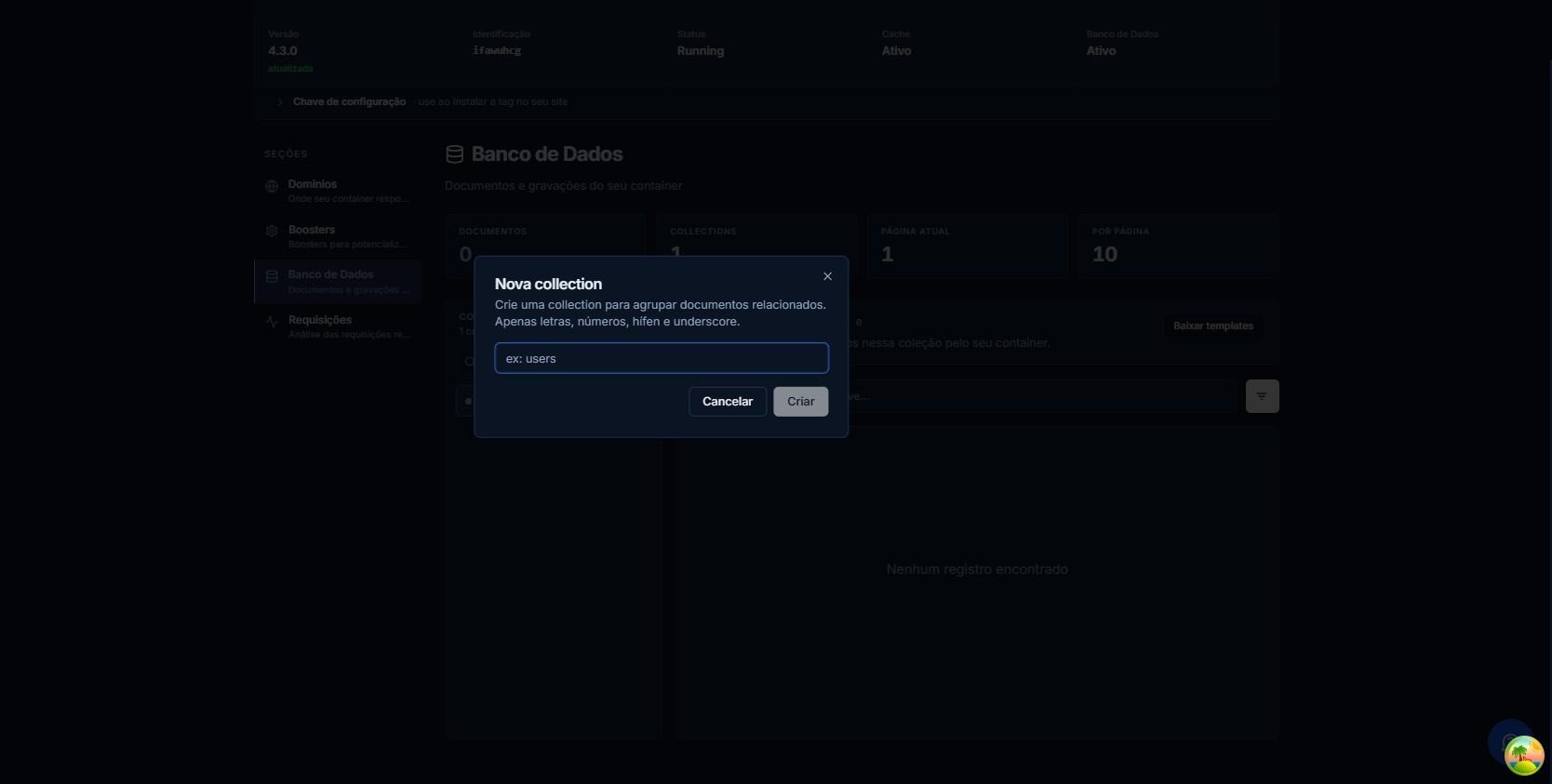
New collection creation modal — input field with placeholder ‘e.g.: users’
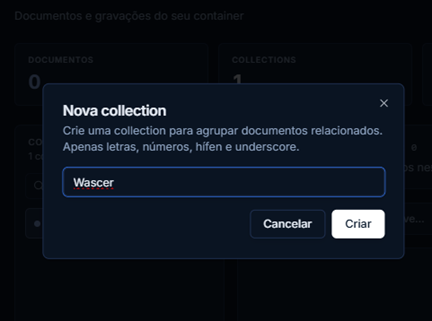
Modal filled with the name ‘Wascer’ ready for creation
Dashboard Management
After activation, the Wascer DB dashboard allows you to:
- View documents: browse collections and inspect stored data.
- Search documents: use the “Search document by key…” bar or advanced filters.
- Monitor metrics: total documents, number of collections, current page and items per page.
- Download templates: click “templates” to import the official templates into sGTM.
Import Templates into sGTM
After activation, import the official templates by clicking the “Baixar templates” (Download templates) button in the Database panel. The templates are also available on the official GitHub repositories:
| Template | Type | Function |
| Wascer Store Writer | Tag | Writes data to Store using a Document Key |
| Wascer Store Read | Variable | Retrieves a field value via Document ID, Field Name and Collection |
Step by Step: Import and Configure Templates in sGTM
This section details the complete process of importing the Wascer Store Writer (Tag) and Wascer Store Read (Variable) templates into Google Tag Manager Server-Side, with screenshots of each step.
Step 1: Download templates from the Wascer dashboard
1. Go to the Wascer dashboard and select the desired sGTM container. In the header, verify that the status is Running and the Database is Active.
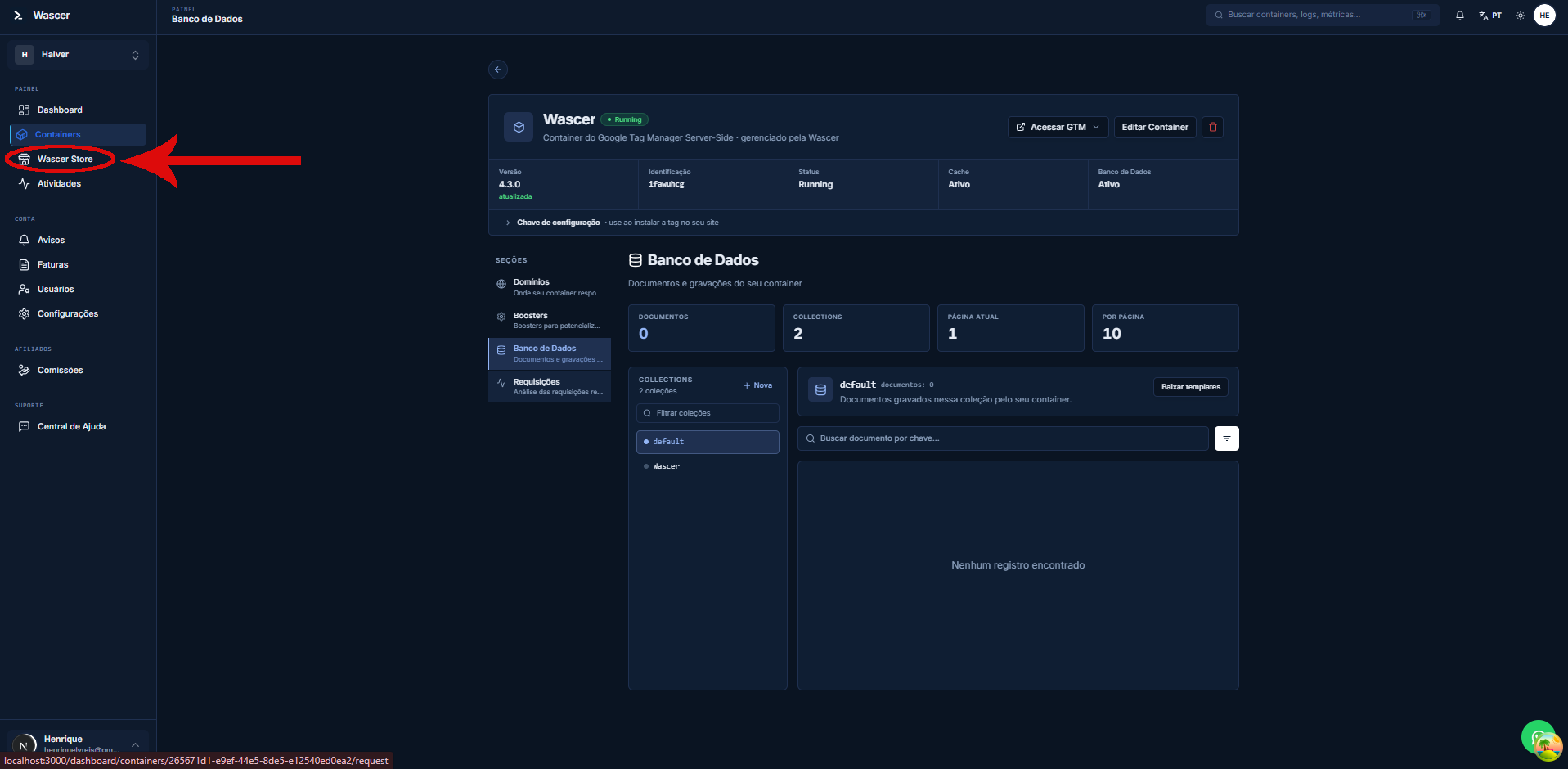
Wascer Dashboard — sGTM container with Running status, configured domains and Smart Cache active
2. Go to the Wascer Store page You will see all available templates for GTM Server-Side: Wascer Store Writer (Server Tag), Wascer Store Read (Server Variable), Data Client Wascer, Firestore Writer, Google Sheets and Google Offline.
3. Click “Download .zip” (Download .zip) on the templates you want to import. For Wascer Store, download Wascer Store Writer and Wascer Store Read.
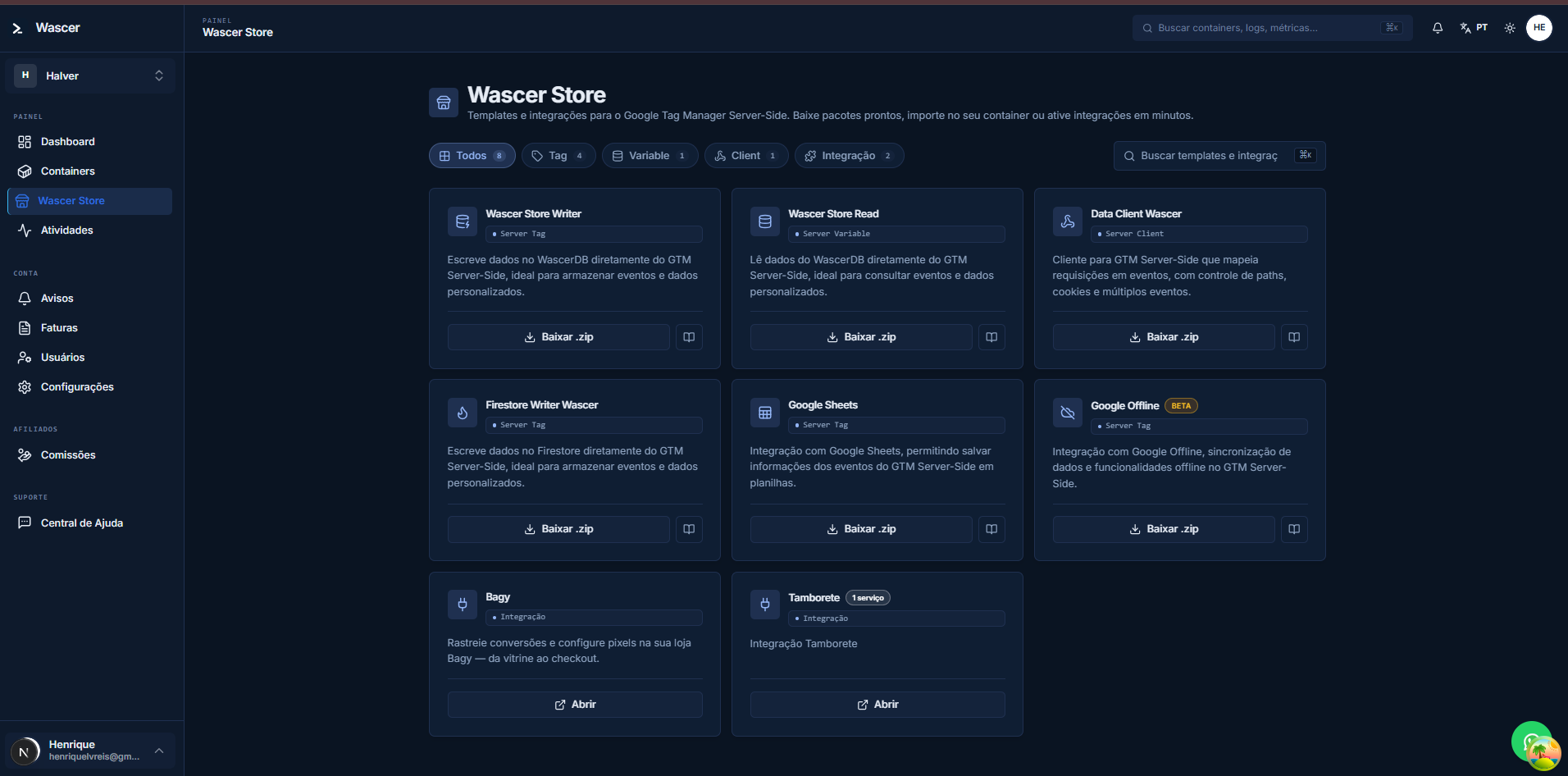
Wascer Store page — all available templates with “Baixar .zip” (Download) button
Template repositories on GitHub:
• Wascer Store Writer (Server Tag): https://github.com/sourei-tech/wascer-store-writer
• Wascer Store Read (Server Variable): https://github.com/soureiBR/wascer-store-read
• Data Client Wascer (Server Client): https://github.com/soureiBR/Data-Client-Wascer
• Firestore Writer Wascer (Server Tag): https://github.com/soureiBR/Firestore-Writer-Wascer
• Google Sheets (Server Tag): https://github.com/soureiBR/google-sheets-template
• Google Offline (Server Tag): https://github.com/soureiBR/google-data-manager-template
Step 2: Import the Tag template (Wascer Store Writer)
4. Open sGTM (click “Open GTM” on the Wascer dashboard). In the workspace sidebar, click “Models” (Templates).
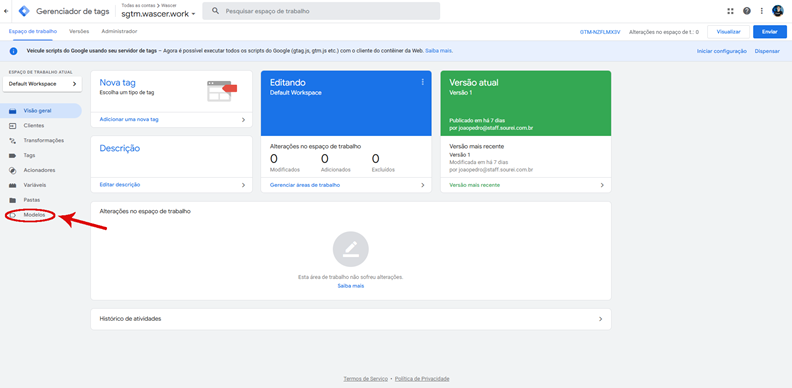
sGTM Workspace — arrow pointing to “Modelos” (Templates) in the left sidebar
5. On the Templates page, you will see three sections: Client templates, Tag templates and Variable templates. Click the “New” button in “Tag Models” (Tag templates).
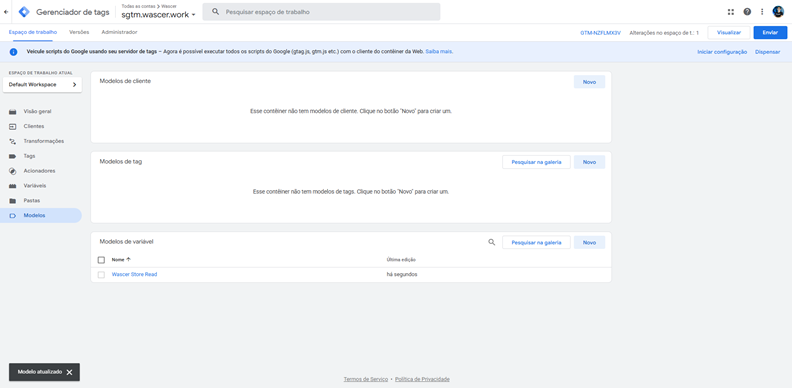
Templates page — “Novo” (New) button highlighted in the “Tag templates” section
6. In the Template Editor, click the three-dot menu (top right corner) and select “Import”
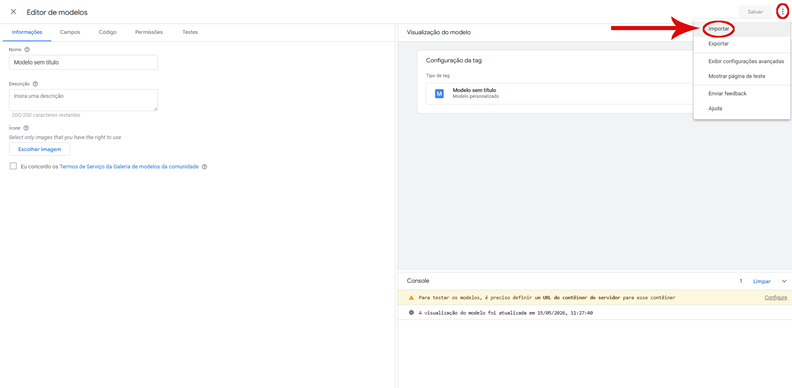
Template Editor — dropdown menu with “Importar” (Import) option highlighted
7. Select the Wascer Store Writer .tpl file (extracted from the previously downloaded .zip). The template will be automatically loaded with name, description and icon.
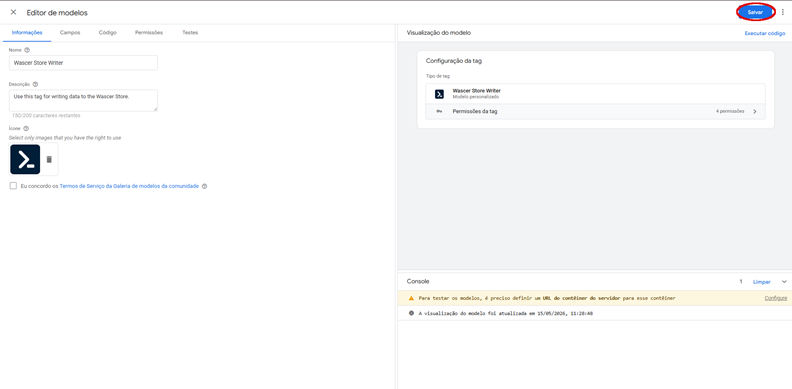
Wascer Store Writer template imported — name, description and icon loaded automatically
8. Check the checkbox “I agree to the Community Template Gallery Terms of Service” and click “Salvar” (Save).
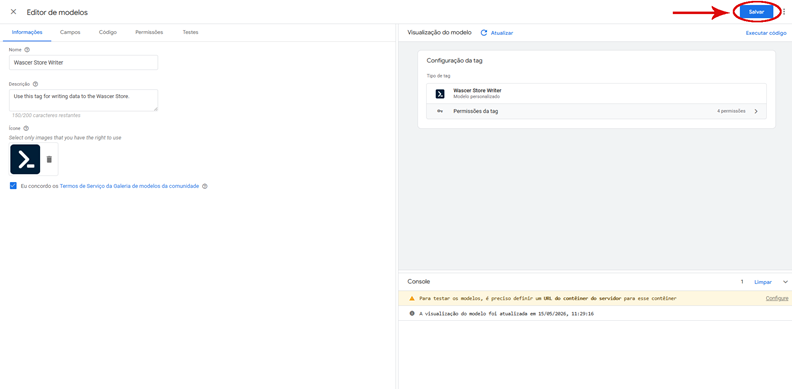
Terms of Service checkbox checked and “Salvar” (Save) button highlighted
Step 3: Import the Variable template (Wascer Store Read)
1. Go back to the Templates page. Now click the “New” button in “Variable templates”.
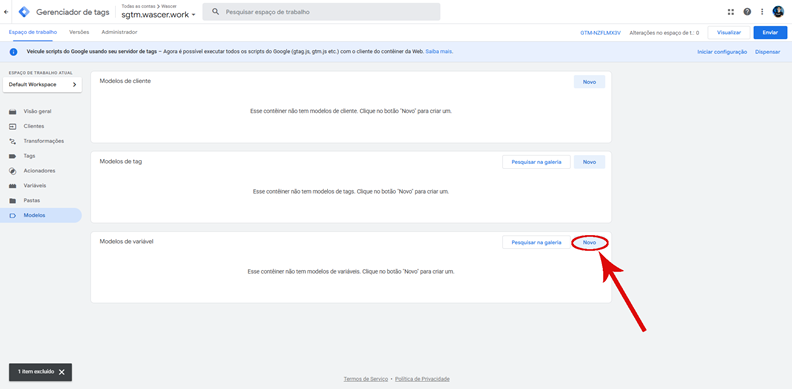
Templates page — “Novo” (New) button highlighted in the “Variable templates” section
2. In the Variable Template Editor, click the three-dot menu and select “Importar” (Import).
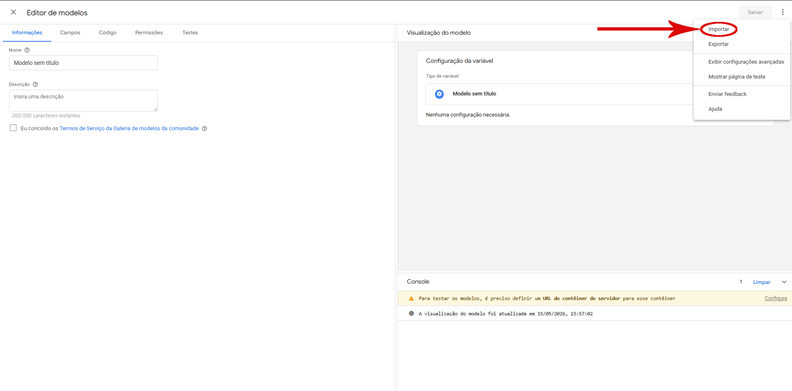
Variable Template Editor — dropdown menu with “Importar” (Import) option
3. Select the Wascer Store Read .tpl file. The template will be loaded with the name “Wascer Store Read” and the description “The value is set to the value from a key in a Wascer Store document.” Download on Wascer_Store_Read
4. Check the Terms of Service checkbox and click “Save”.
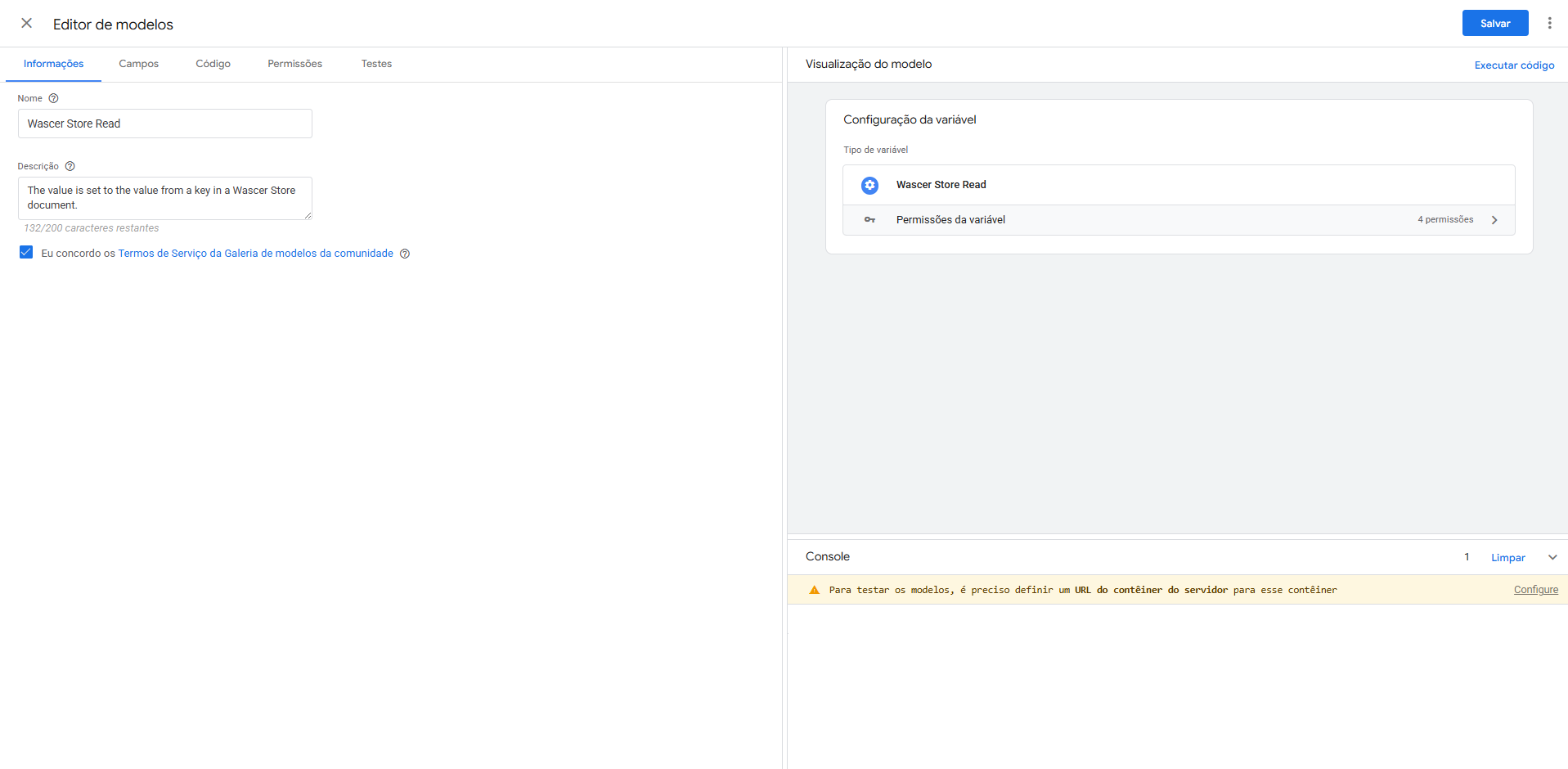
Wascer Store Read imported — name, description and Terms checkbox checked
5. Confirm the import. The “Wascer Store Read” template will appear in the Variable templates list.
Templates page — “Wascer Store Read” listed in Variable templates
Step 4: Create a Tag using Wascer Store Writer
1. In the sidebar, click “Tags” and then “New” to create a new tag.
2. Under “Tipo de tag” (Tag type), select “Wascer Store Writer” (the custom template you imported).
3. Under “Acionamento” (Triggering), add the desired firing trigger (e.g.: “All Pages” to fire on all pages).
4. Name the tag (e.g.: “Wascer_Store_Writer_Tag”) and click “Save”.
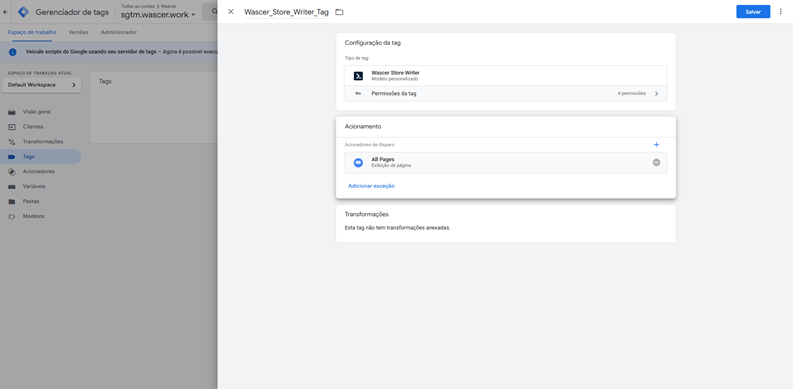
Wascer Store Writer tag configuration with “All Pages” trigger
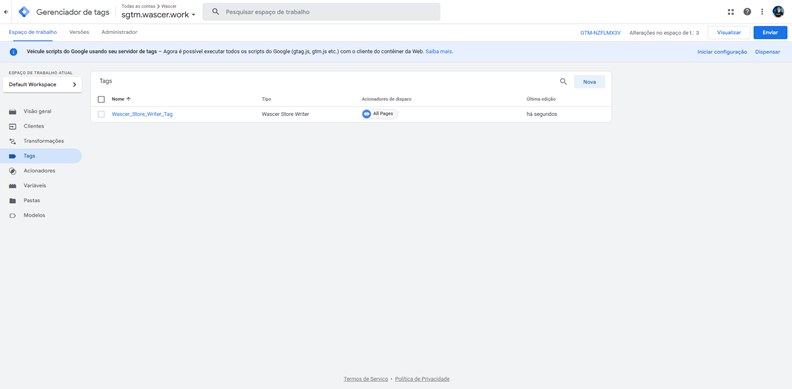
Tags list — “Wascer_Store_Writer_Tag” created with All Pages trigger
Step 5: Create and configure the Wascer Store Read Variable
1. In the sidebar, click “Variables” and then “New” (in the User-Defined Variables section).
2. Under “Tipo de variavel” (Variable type), select “Wascer Store Read” (the imported custom template).
3. Fill in the fields:
- Document ID: the document identifier (accepts variables, e.g.: {{Document_ID}})
- Field Name: the field name you want to retrieve (e.g.: page_view)
- Collection (optional): the collection where the document is stored (e.g.: Wascer)
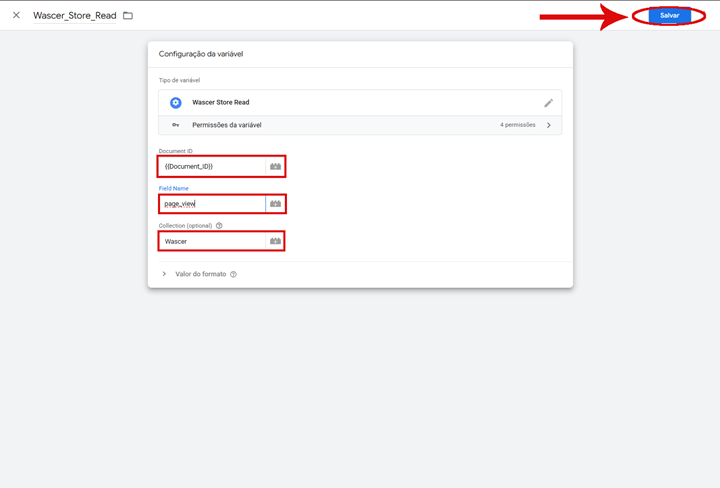
Wascer Store Read variable filled: Document ID {{Document_ID}}, Field Name “page_view”, Collection “Wascer”
4. Name the variable (e.g.: “Wascer_Store_Read”) and click “Salvar” (Save).
Done! Your Wascer Store templates are configured in sGTM. The Wascer Store Writer tag writes data to the database on each firing, and the Wascer Store Read variable can be used in any tag or trigger to read stored data.
5. Implementation Examples
Base URL: ‘https://{conteiner_url}/wascer-api/{api_key}/v1/store/{function}
API documentation: https://docs.wascer.com/
Writing data — POST
Write a document to Wascer Store using an HTTP POST request.
Endpoint:
POST https://api.store.wascer.com/v2/documentsHeaders:
Content-Type: application/json
Authorization: Bearer <WASCER_STORE_API_KEY>
Request Body:
{
  "collection": "user_profiles",
  "document_key": "uid_7f3a9c2e",
  "data": {
    "email_hash": "sha256_a1b2c3d4e5f6",
    "first_seen": "2026-05-15T10:30:00Z",
    "segment": "new_customer",
    "consent_analytics": true
  },
}
Response (201 Created):
{
  "status": "created",
  "document_key": "uid_7f3a9c2e",
  "collection": "user_profiles",
  "expires_at": "2026-08-13T10:30:00Z"
}
Reading data — GET
Full document:
GET https://api.store.wascer.com/v2/documents/user_profiles/uid_7f3a9c2eSpecific field via Key Path:
GET https://api.store.wascer.com/v2/documents/user_profiles/uid_7f3a9c2e?field=data.segmentResponse (specific field):
{
  "document_key": "uid_7f3a9c2e",
  "field": "data.segment",
  "value": "new_customer"
}
Partial update — PATCH
Endpoint:
PATCH https://api.store.wascer.com/v2/documents/user_profiles/uid_7f3a9c2eRequest Body:
{
  "data": {
    "segment": "returning_customer",
    "total_sessions": 5,
    "ltv": 349.90
  }
}
Deletion — DELETE
Endpoint:
DELETE https://api.store.wascer.com/v2/documents/user_profiles/uid_7f3a9c2eResponse: 204 No Content.
Reading via sGTM Variable Template (Sandboxed JavaScript)
const sendHttpGet = require('sendHttpGet');
const JSON = require('JSON');

const STORE_API = 'https://api.store.wascer.com/v2/documents';
const API_KEY = data.apiKey;

const collection = data.collection;
const documentKey = data.documentKey;
const fieldPath = data.fieldPath;

const url = STORE_API + '/' + collection + '/' + documentKey
          + (fieldPath ? '?field=' + fieldPath : '');

sendHttpGet(url, {
  headers: {
    'Authorization': 'Bearer ' + API_KEY,
    'Content-Type': 'application/json'
  },
  timeout: 2000
}).then(function(result) {
  if (result.statusCode === 200) {
    const body = JSON.parse(result.body);
    return fieldPath ? body.value : body.data;
  }
  return undefined;
});
Writing via sGTM Tag Template (Sandboxed JavaScript)
const sendHttpRequest = require('sendHttpRequest');
const JSON = require('JSON');
const getTimestampMillis = require('getTimestampMillis');

const STORE_API = 'https://api.store.wascer.com/v2/documents';
const API_KEY = data.apiKey;

const payload = {
  collection: data.collection,
  document_key: data.documentKey,
  data: {
    event_name: data.eventName,
    timestamp: getTimestampMillis(),
    user_agent: data.userAgent
  },
};

sendHttpRequest(STORE_API, {
  method: 'POST',
  headers: {
    'Authorization': 'Bearer ' + API_KEY,
    'Content-Type': 'application/json'
  },
  timeout: 2000
}, JSON.stringify(payload)).then(function(result) {
  if (result.statusCode >= 200 && result.statusCode < 300) {
    data.gtmOnSuccess();
  } else {
    data.gtmOnFailure();
  }
});
Full Example: Server-Side Frequency Capping
Checks if an event has already been fired before triggering the destination tag. Prevents duplicate conversion firings for Meta Conversions API or Google Ads.
const sendHttpGet = require('sendHttpGet');
const sendHttpRequest = require('sendHttpRequest');
const JSON = require('JSON');
const getTimestampMillis = require('getTimestampMillis');

const STORE_API = 'https://api.store.wascer.com/v2/documents';
const API_KEY = data.apiKey;
const collection = 'capping';
const documentKey = 'cap_' + data.transactionId;

// 1. Check if the event has already been recorded
sendHttpGet(STORE_API + '/' + collection + '/' + documentKey, {
  headers: { 'Authorization': 'Bearer ' + API_KEY },
  timeout: 2000
}).then(function(result) {

  if (result.statusCode === 404) {
    // 2. First firing - write and fire the tag
    var payload = JSON.stringify({
      collection: collection,
      document_key: documentKey,
      data: {
        event: data.eventName,
        fired_count: 1,
        last_fired: getTimestampMillis()
      },
    });

    sendHttpRequest(STORE_API, {
      method: 'POST',
      headers: {
        'Authorization': 'Bearer ' + API_KEY,
        'Content-Type': 'application/json'
      },
      timeout: 2000
    }, payload).then(function() {
      data.gtmOnSuccess(); // Tag fires
    });

  } else if (result.statusCode === 200) {
    // 3. Event already fired - block
    data.gtmOnFailure(); // Tag does NOT fire
  }
});
6. Use Cases
Cross-session attribution with GCLID/FBCLID
A user accesses your e-commerce for the first time via a Google Ads campaign. Wascer Store saves the gclid associated with their identifier. Days later, the same user returns via direct access and converts. The sGTM container retrieves the original gclid from Wascer Store and correctly attributes the conversion to the original campaign — even if the browser cookies have been cleared.
Stored document:
{
  "document_key": "uid_7f3a9c2e",
  "collection": "attribution",
  "data": {
    "gclid": "EAIaIQobChMI...",
    "fbclid": "IwAR3x...",
    "first_touch_source": "google",
    "first_touch_medium": "cpc",
    "first_touch_campaign": "black_friday_2026"
  },
}
Conversion frequency capping
Limit the Meta Conversions API conversion pixel firing to at most 1 time per transaction, even if the purchase event is sent multiple times due to client-side retries. Wascer Store records each fired transaction and automatically blocks duplicates.
Real-time data enrichment
When receiving an add_to_cart event, the sGTM container queries Wascer Store to retrieve the customer segment (vip, returning, new), LTV and loyalty tier. This information is injected as custom parameters into the event sent to Google Analytics 4 and Meta Conversions API, without external calls to CRMs or CDPs.
7. API Quick Reference
Authentication: Header Authorization: Bearer <WASCER_STORE_API_KEY>
Endpoints
| Method | Endpoint | Description |
| POST | /v2/documents | Creates a new document |
| GET | /v2/documents/{collection}/{key} | Retrieves a document |
| GET | /v2/documents/{collection}/{key}?field={path} | Retrieves a specific field |
| PATCH | /v2/documents/{collection}/{key} | Updates document fields |
| DELETE | /v2/documents/{collection}/{key} | Deletes a document |
Limits
| Resource | Limit |
| Maximum document size | 1 MB |
| Total documents per container | 10,000,000 |
| Recommended timeout | 2,000 ms |
8. Availability
Wascer DB is available on the following plans:
| Plan | Wascer DB | Documents | Notes |
| Free | Included | Up to 10K | Full access via templates and API |
| Starter | Included | Up to 1M | Full access via templates and API |
| Pro | Included | Up to 10M | Full access via templates and API |
| Business | Included | Up to 10M | Full access + priority support |
| Enterprise | Included | Custom | Custom limits + dedicated SLA |
For custom implementations or specific volume needs, please contact the Wascer sales team.
Was this helpful?
Thanks for your feedback!