Boosters
Webhooks in sGTM with the Wascer Data Client
This documentation describes, step by step, how to configure the sending of webhooks from an external system (CRM, CMS, e-commerce platform, ERP, etc.) to a Server-Side Google Tag Manager (sGTM) container hosted on Wascer, how to view this data in the debugger, and how to process it for use in tags.
The examples use the /order_created path and the “order created in CRM” scenario, but you should replace these values with the path and context of your project (e.g., /lead_created, /payment_confirmed, /form_submitted).
Table of Contents
- Prerequisites
- Workflow overview
- Step 1 — Send the webhook to sGTM
- Step 2 — View the data in the debugger
- Step 3 — Process the webhook with the Wascer Data Client
- Step 4 — Use the data in sGTM tags
- Validation checklist
- Common troubleshooting
1. Prerequisites
Before you begin, make sure you have:
- A Server-Side GTM container hosted on Wascer, with an active plan and a publicly accessible URL (e.g.,
https://sgtm.yourdomain.com). Don’t have a server yet? Check the available plans at wascer.com/en/pricing. - Edit access to the Server-Side container in GTM.
- Access to the source system that will trigger the webhook (CRM, CMS, payment platform, etc.) and permission to configure webhooks on it.
- Access to the Wascer panel, where you will configure the Preview Header needed to debug the webhooks (a feature included in all plans).
- The Wascer Data Client template downloaded from the official repository: github.com/soureiBR/Data-Client-Wascer.
💬 Need help with implementation? The Wascer support team assists with initial setup and specific cases. Visit wascer.com to talk to the team.
2. Workflow overview
Sending webhooks to sGTM follows four chained steps:
- The source system fires an HTTP POST to sGTM on Wascer
- The Wascer Data Client claims the request
- The event becomes available to Tags, Variables, and Triggers
- The data is sent to destination platforms: Meta CAPI, GA4, Google Ads, Slack, etc.
3. Step 1 — Send the webhook to sGTM
3.1. Identify the source event
In the system that will fire the webhook, choose the event you want to track. Examples:
- Order created in the CRM/e-commerce
- Qualified lead changed status
- Payment confirmed / refunded
- Form submitted
- Recovered abandoned cart
3.2. Define the webhook destination URL
The webhook URL is composed of:
https://sgtm.yourdomain.com/order_created| Component | Example value | What it is |
| sGTM URL | https://sgtm.yourdomain.com | Public URL of your Server-Side container on Wascer (custom domain configured in the panel) |
| Path | /order_created | Unique identifier for this webhook — used later for the Wascer Data Client to recognize the request |
💡 Best practices for the path:
- Use descriptive names in lowercase, without spaces (/order_created, /lead_status_changed).
- Use a different path for each event type. This makes it easier to create one Data Client per event and keeps debugging organized.
- Avoid paths that may collide with internal GTM routes (do not use /, /healthy, /gtm/*).
3.3. Configure the webhook in the source system
The interface varies depending on the system (RD Station, HubSpot, Pipedrive, Shopify, WooCommerce, etc.), but the fields to fill in are always the same:
| Field | What to provide |
| URL / Endpoint | The full URL assembled in step 3.2 |
| HTTP Method | POST (standard for webhooks; the Wascer Data Client also accepts GET if the source doesn’t support POST) |
| Content-Type | application/json (recommended) |
| Payload / Body | JSON with the event fields (order ID, value, email, phone, cookie IDs, etc.) |
| Custom headers | Optional — useful for authentication (e.g., X-Api-Key) |
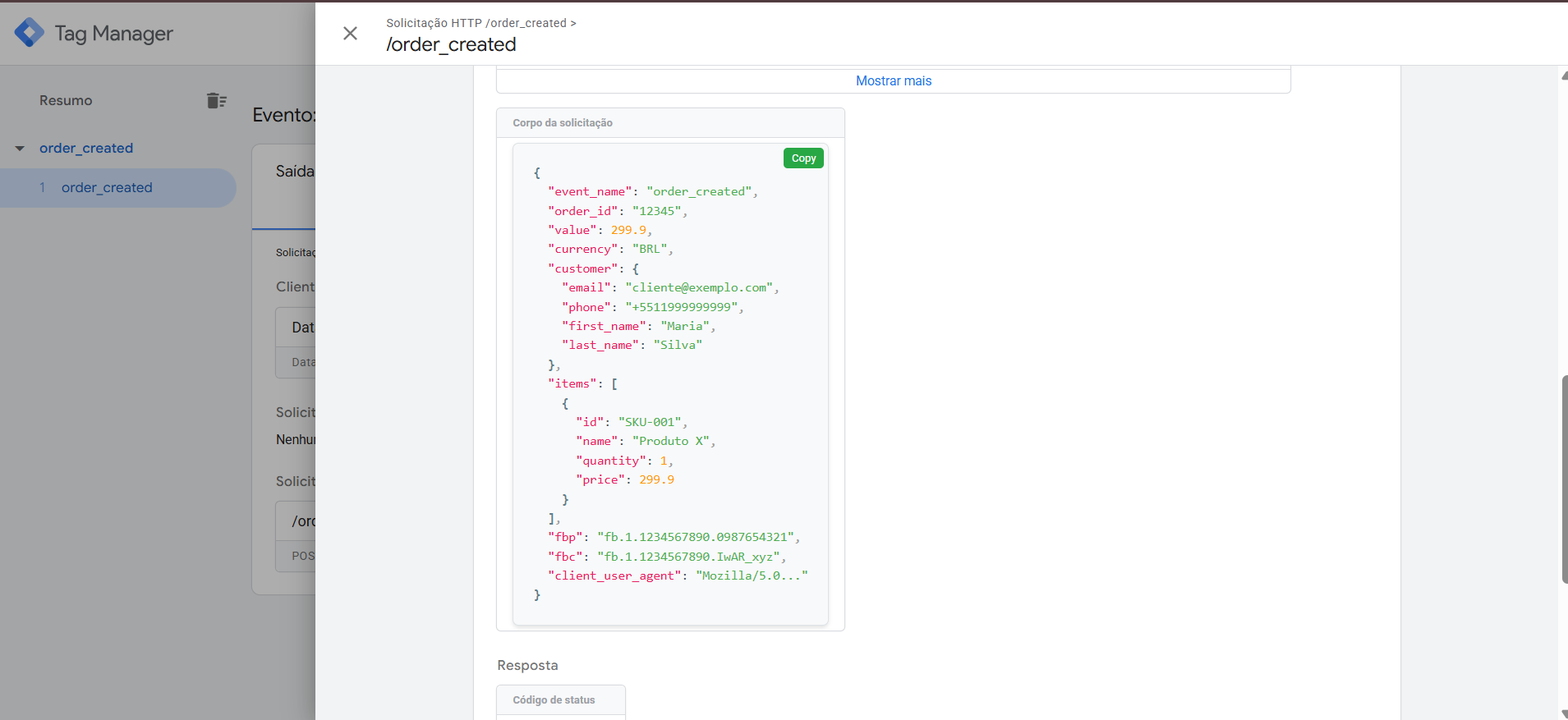
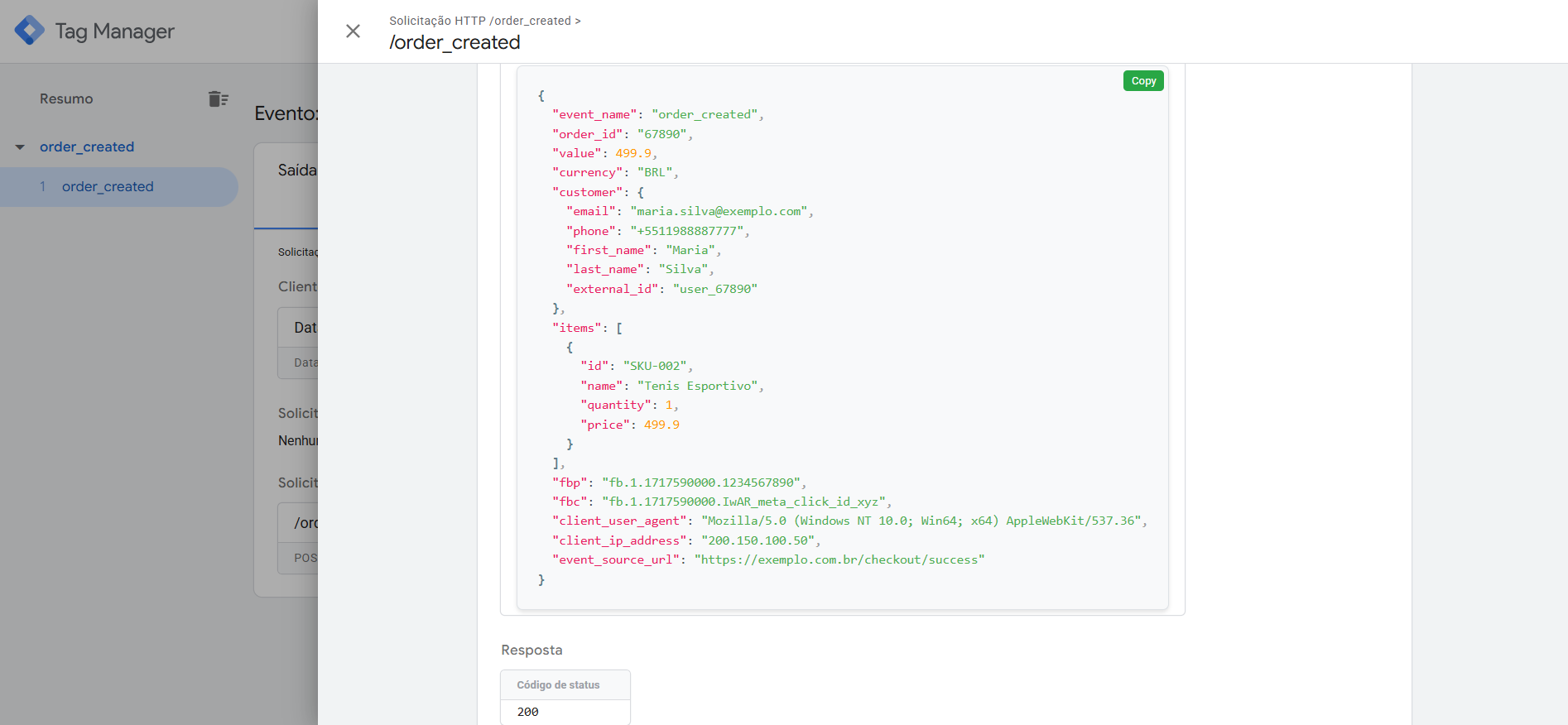
Example JSON payload (order created scenario — adapt to your fields):
{
  "event_name": "order_created",
  "order_id": "12345",
  "value": 299.90,
  "currency": "BRL",
  "customer": {
    "email": "customer@example.com",
    "phone": "+5511999999999",
    "first_name": "Maria",
    "last_name": "Silva"
  },
  "items": [
    { "id": "SKU-001", "name": "Product X", "quantity": 1, "price": 299.90 }
  ],
  "fbp": "fb.1.1234567890.0987654321",
  "fbc": "fb.1.1234567890.IwAR_xyz",
  "client_user_agent": "Mozilla/5.0..."
}
⚠️ Important: the more user identifiers you send (email, phone, fbp, fbc, ga_session_id, IP, user agent), the better the deduplication and match in advertising platforms will be.
4. Step 2 — View the webhook data in the debugger
By default, the sGTM debugger does not display webhook requests, because webhooks are server-to-server calls and do not carry the preview cookie that GTM injects in the browser.
To solve this, you need to copy the X-Gtm-Server-Preview header from the container and inject it through the Wascer panel. The header works as a “temporary credential” that tells sGTM: “all requests that arrive now should appear in preview mode.”
4.1. Activate Preview mode on the Server-Side container
- Open the Server-Side container in GTM.
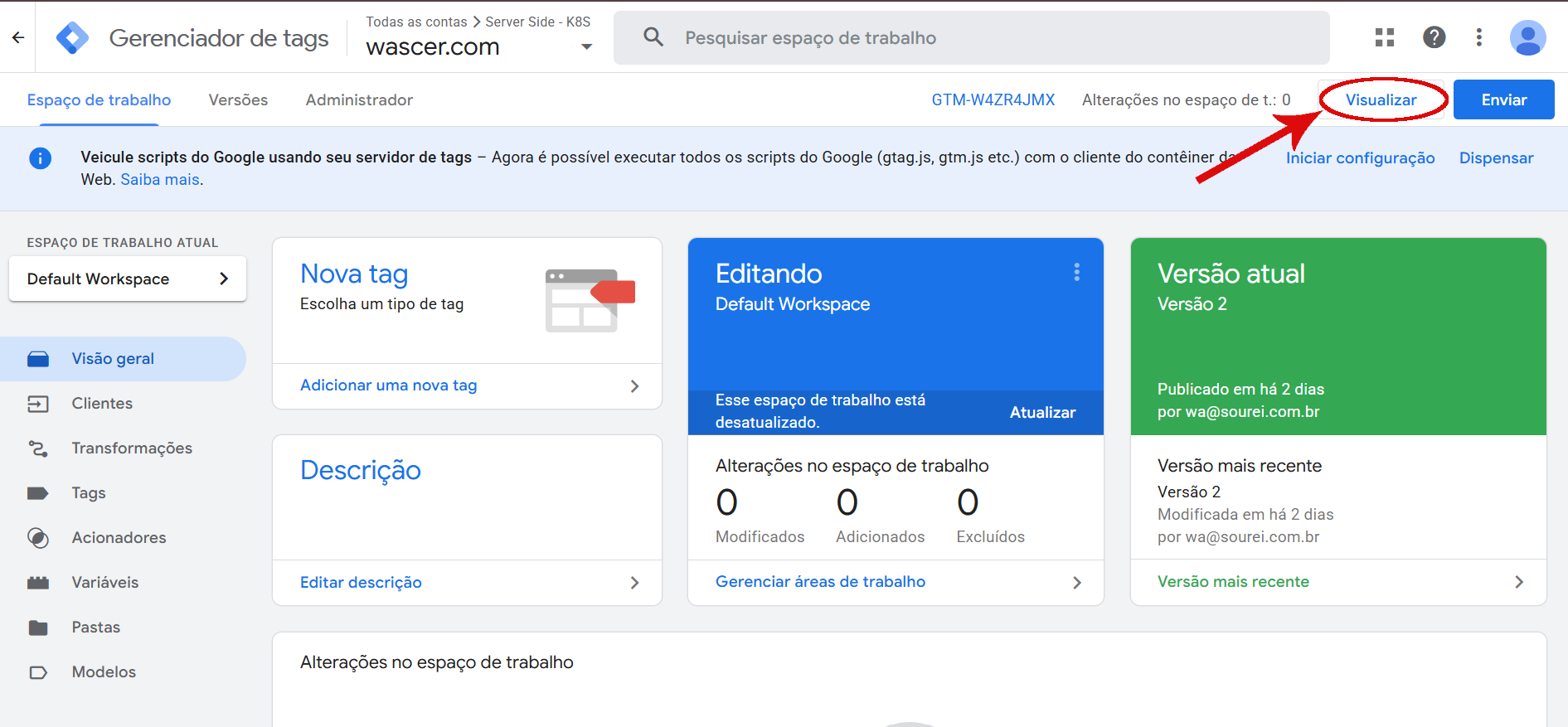
- Click Preview (top right corner).
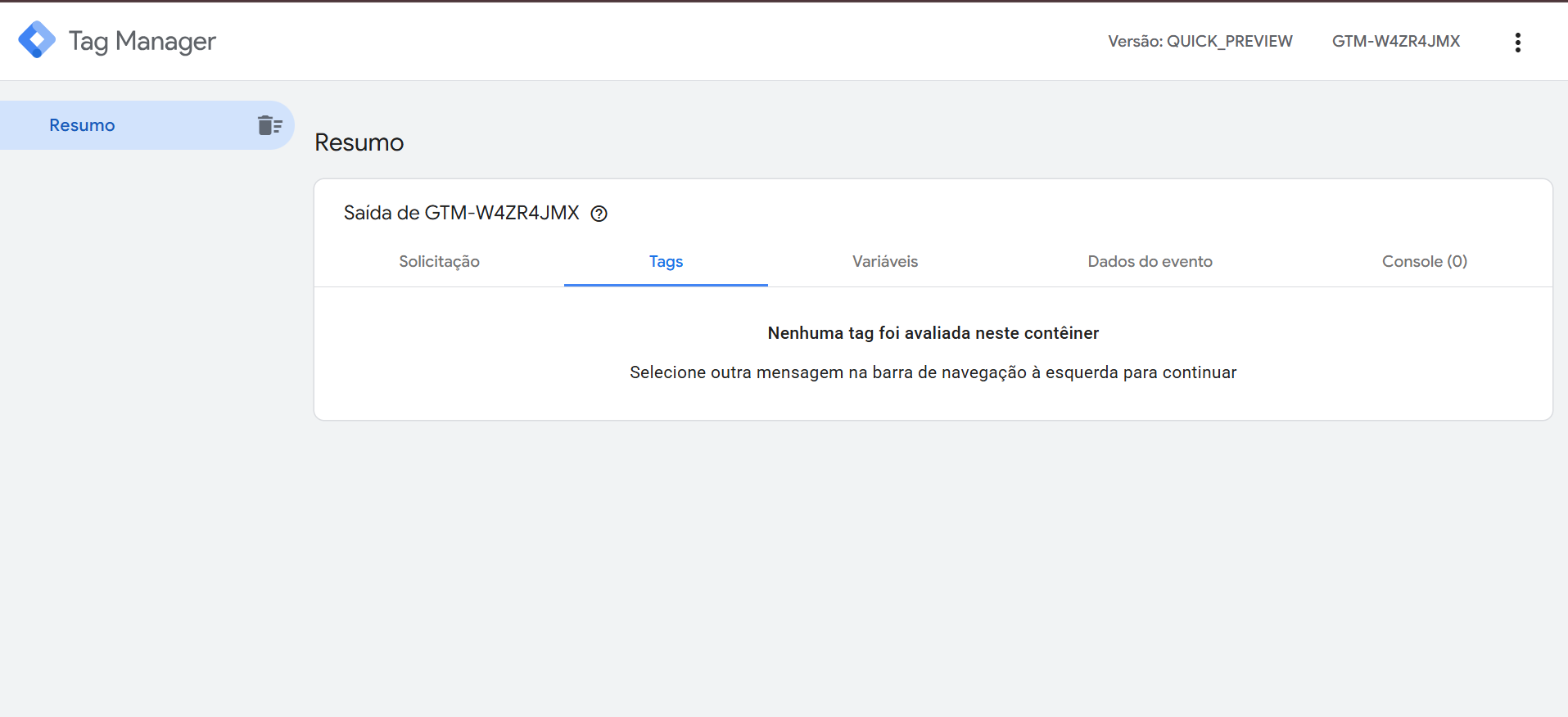
- The debugger opens in a new tab and waits for requests.
4.2. Copy the X-Gtm-Server-Preview header
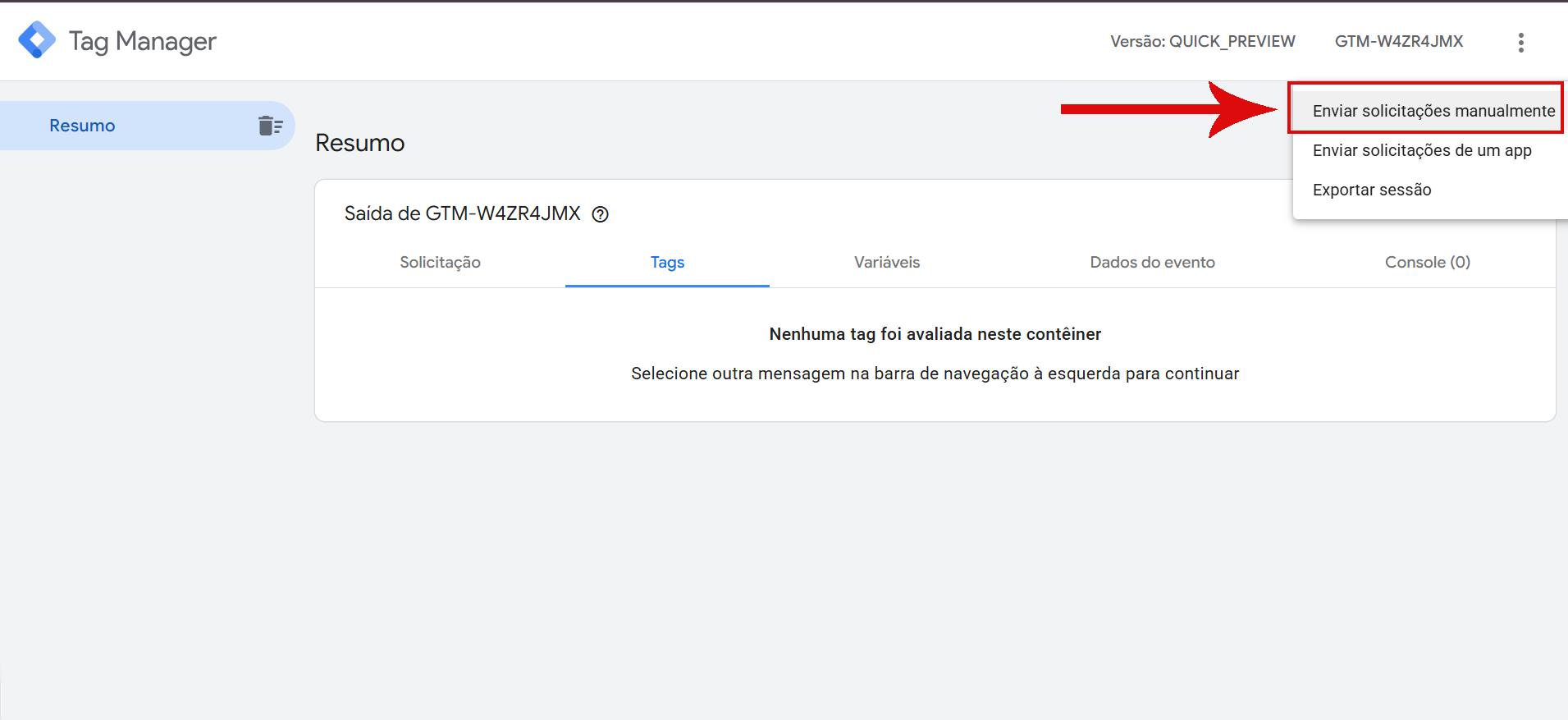
- Inside the debugger, locate the options menu (three-dot icon / additional menu on the top bar).
- Select the option that allows you to send requests manually (Send requests manually).
- A modal will show the value of the X-Gtm-Server-Preview header — a long base64 string.
- Copy the value of this header.
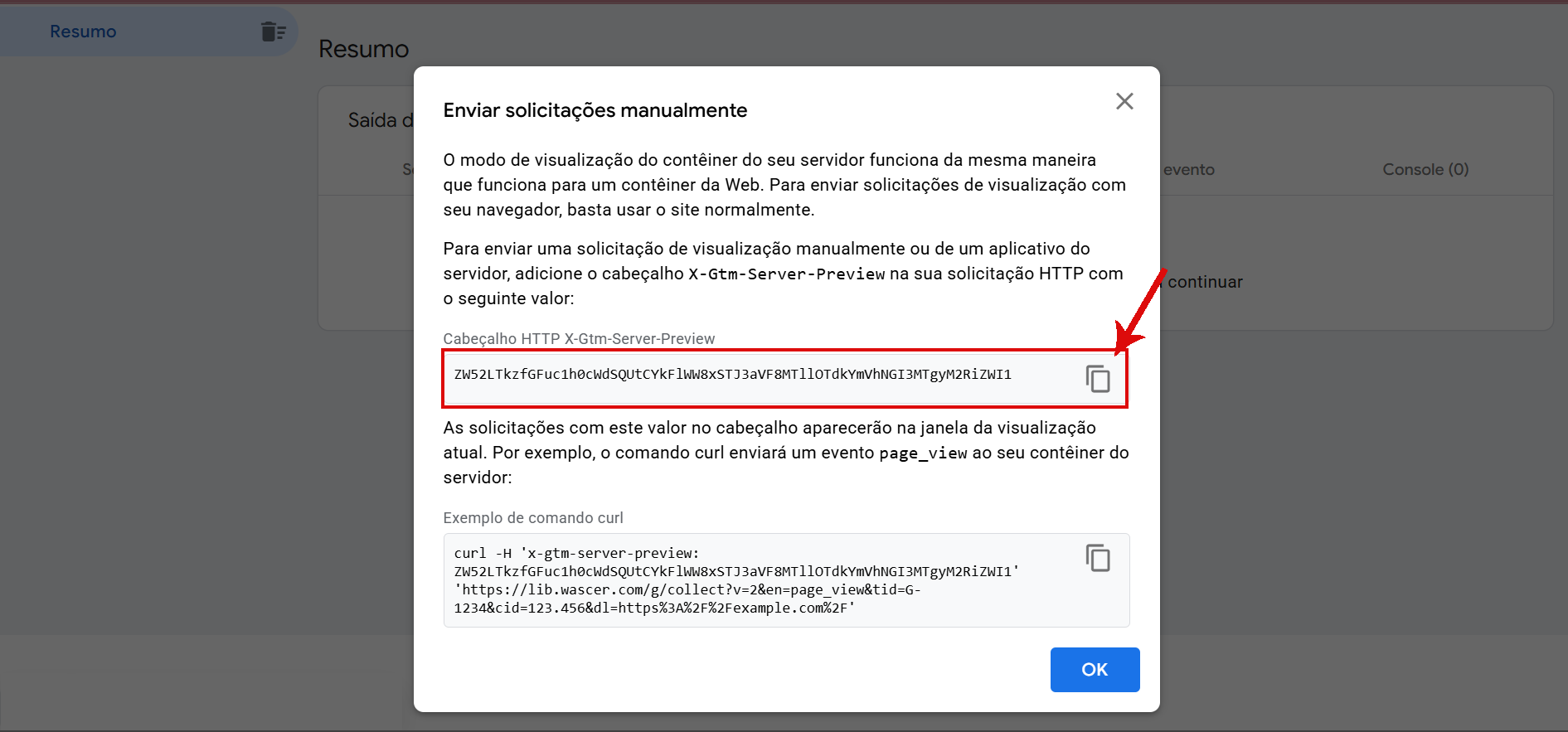
📝 Note: the exact location of this menu has changed in recent GTM versions. If you don’t find “Send requests manually,” look for “Debug requests,” “Preview Headers,” or the settings icon inside the debugger. The value to copy is always identified by the name X-Gtm-Server-Preview.
4.3. Inject the header in the Wascer panel
- Access the Wascer panel and open the corresponding sGTM container.
- Locate the Preview Header option in the server settings.
- Paste the value copied in step 4.2.
- Save.
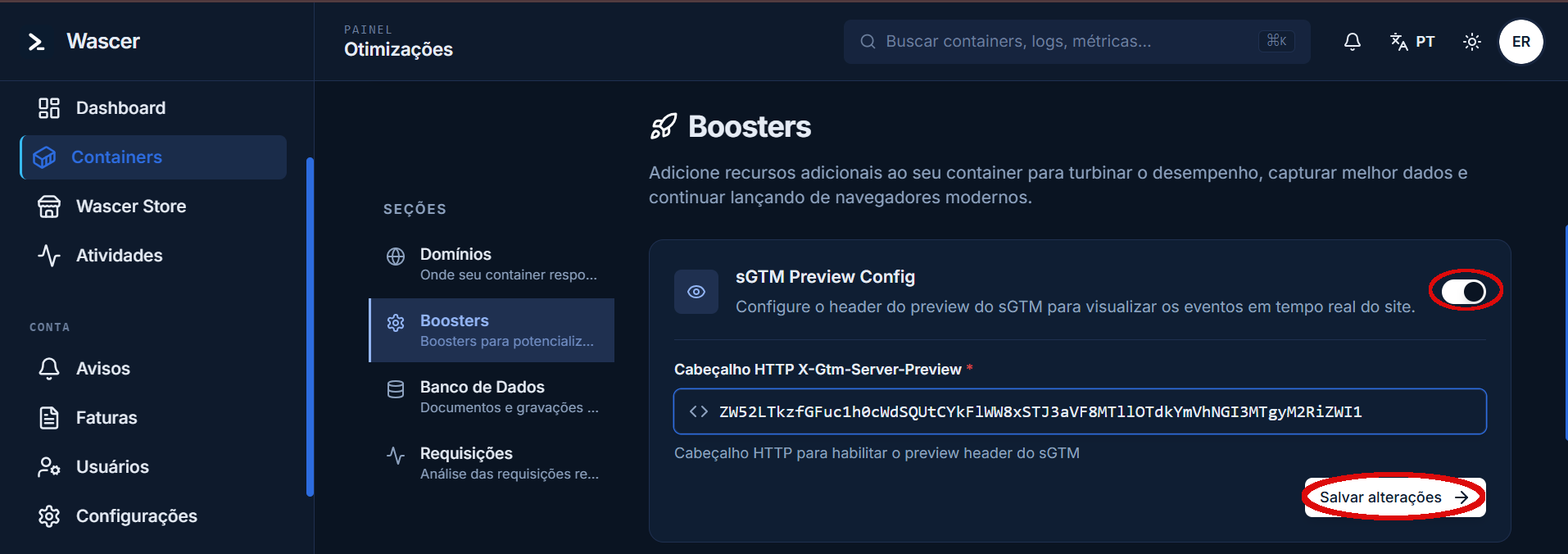
⏱️ Validity: the header is automatically removed by Wascer after 1 hour for security reasons. If the debug window extends, repeat the copy/paste process.
🔒 Best practice: when you finish debugging, manually remove the Preview Header in the Wascer panel to ensure that no production data continues to be captured in the debugger.
4.4. Fire the webhook and confirm in the debugger
- In the source system, force a webhook trigger (creating a test order, changing a lead, etc.).
- Return to the sGTM debugger — the request should appear in the side event list.
- Click on it to inspect:
- Request — URL, method, headers, received body.
- Event Data — structured data (after the Wascer Data Client processes it — see Step 3).
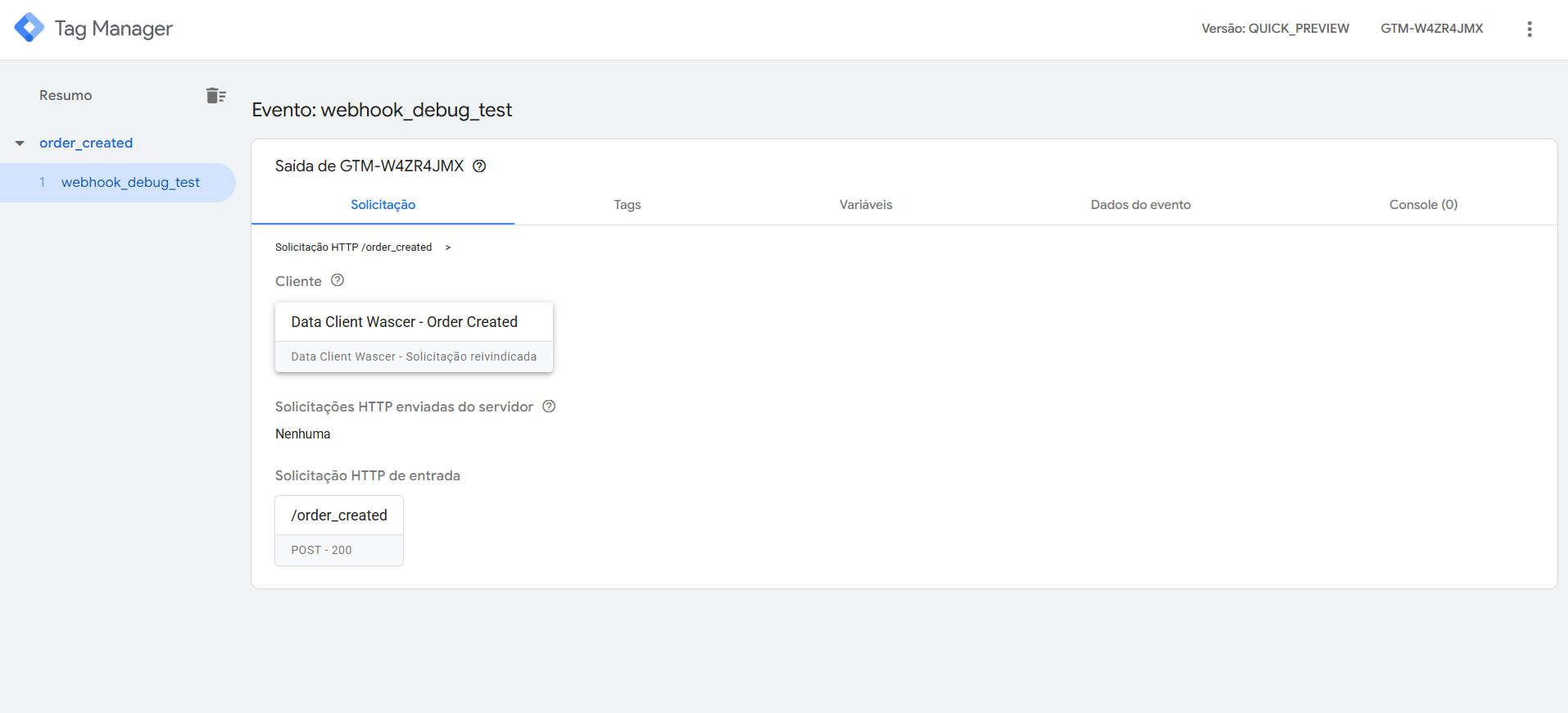
If the request does not appear, go directly to the troubleshooting section.
5. Step 3 — Process the webhook with the Wascer Data Client
When a request arrives at sGTM, it needs to be claimed by a Client. Without this, neither the debugger can display the data in a structured way, nor can the fields be used in tags.
For this, we use the Wascer Data Client, a custom template maintained by Wascer that acts as a mapper between the request data and the event data, with granular control over authorized paths.
Main features of the Wascer Data Client:
- Validation of authorized paths (e.g., /data, /spec, /top)
- Support for multiple events per request
- Automatic CORS headers
- Advanced cookie management (including HttpOnly and automatic renewal)
- Customizable responses (200, 301, 302, 403, 404)
- Automatic client_id generation
5.1. Download the Wascer Data Client template
- Visit github.com/soureiBR/Data-Client-Wascer.
- Download the
data-client-wascer.tpl file(click on the file in the repository and use Download raw file, or clone the entire repository).
5.2. Import the template into sGTM
- In the Server-Side container, go to Templates (left side menu).
- In the Client Templates section, click New.
- In the template editor, click the options menu (three dots) and select Import.
- Select the downloaded
data-client-wascer.tplfile. - Save the template.
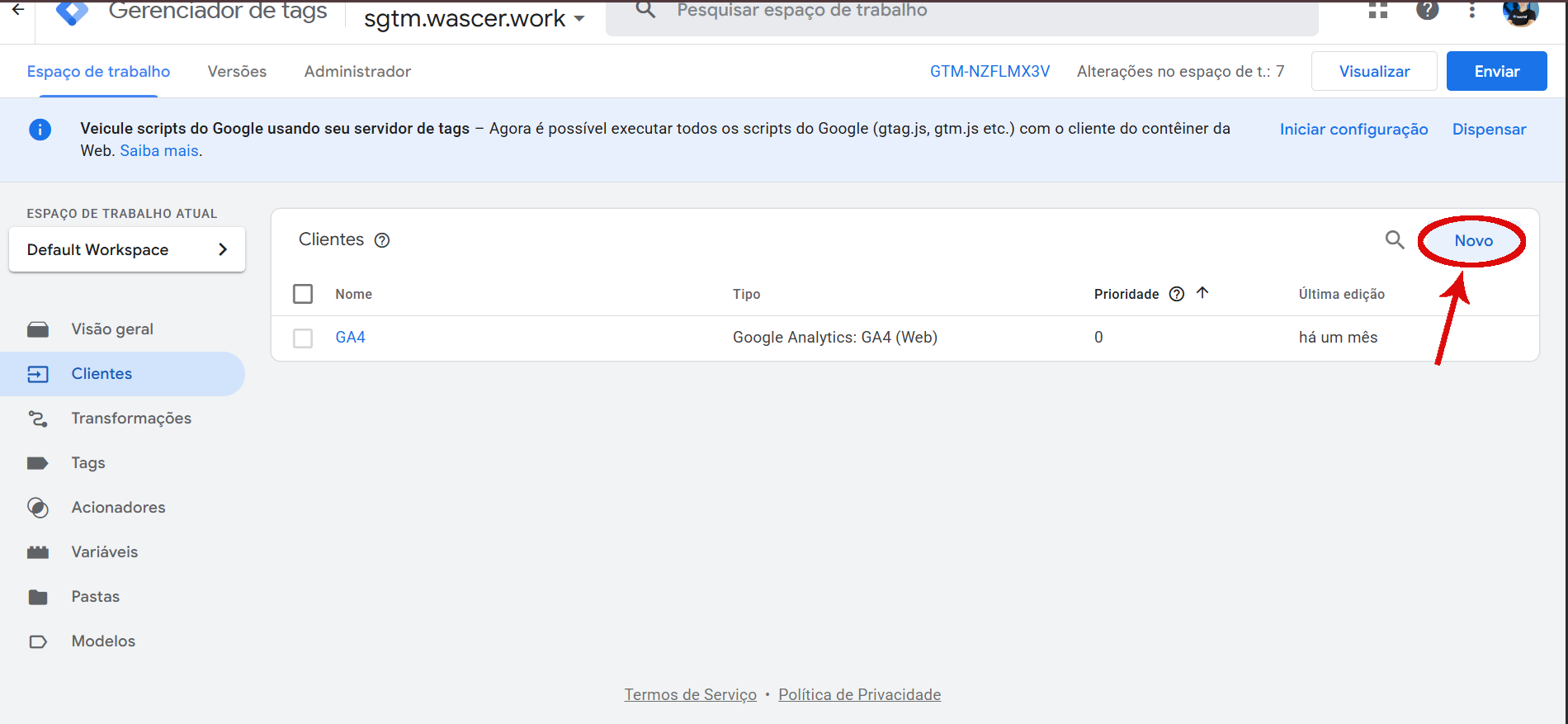
5.3. Create a Client using the Wascer Data Client
- Go to the Clients section (left side menu).
- Click New.
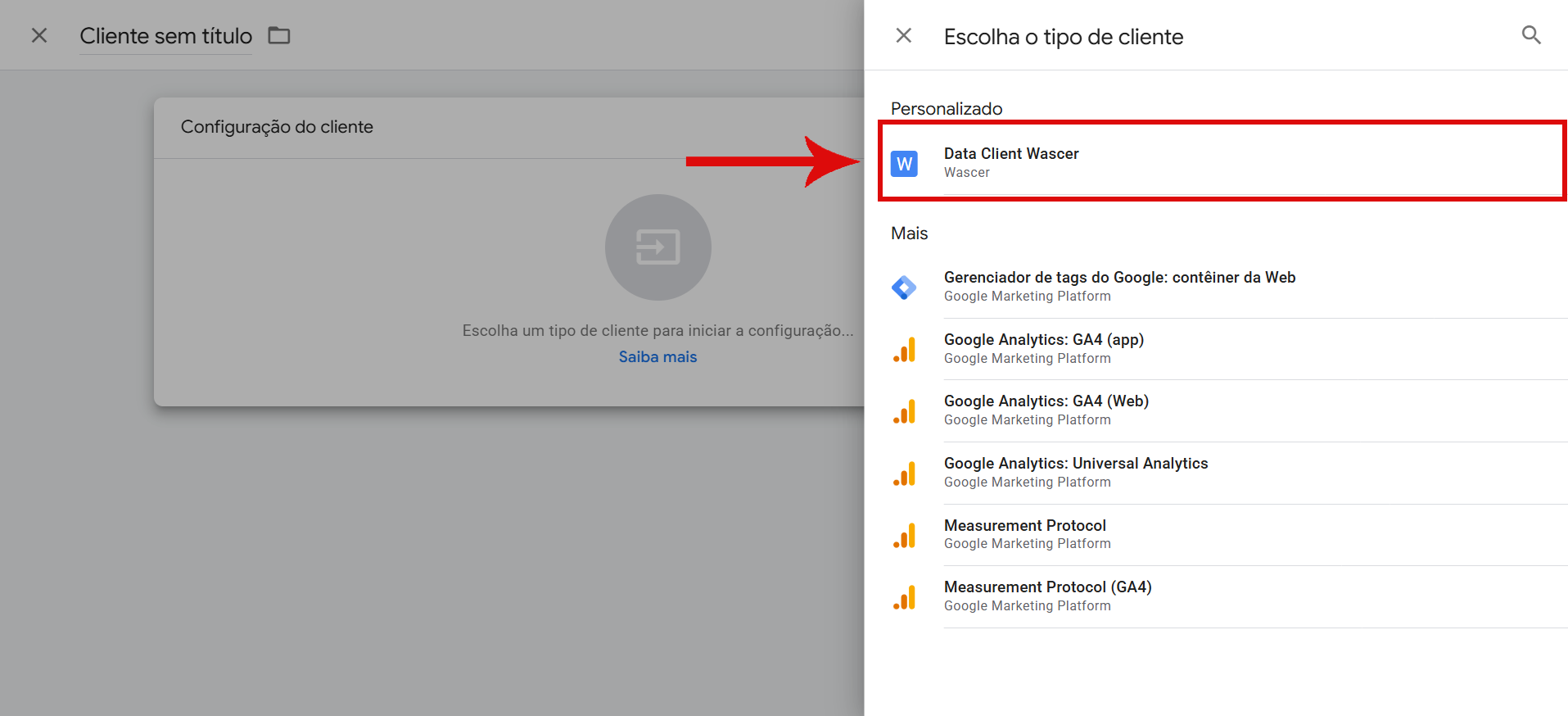
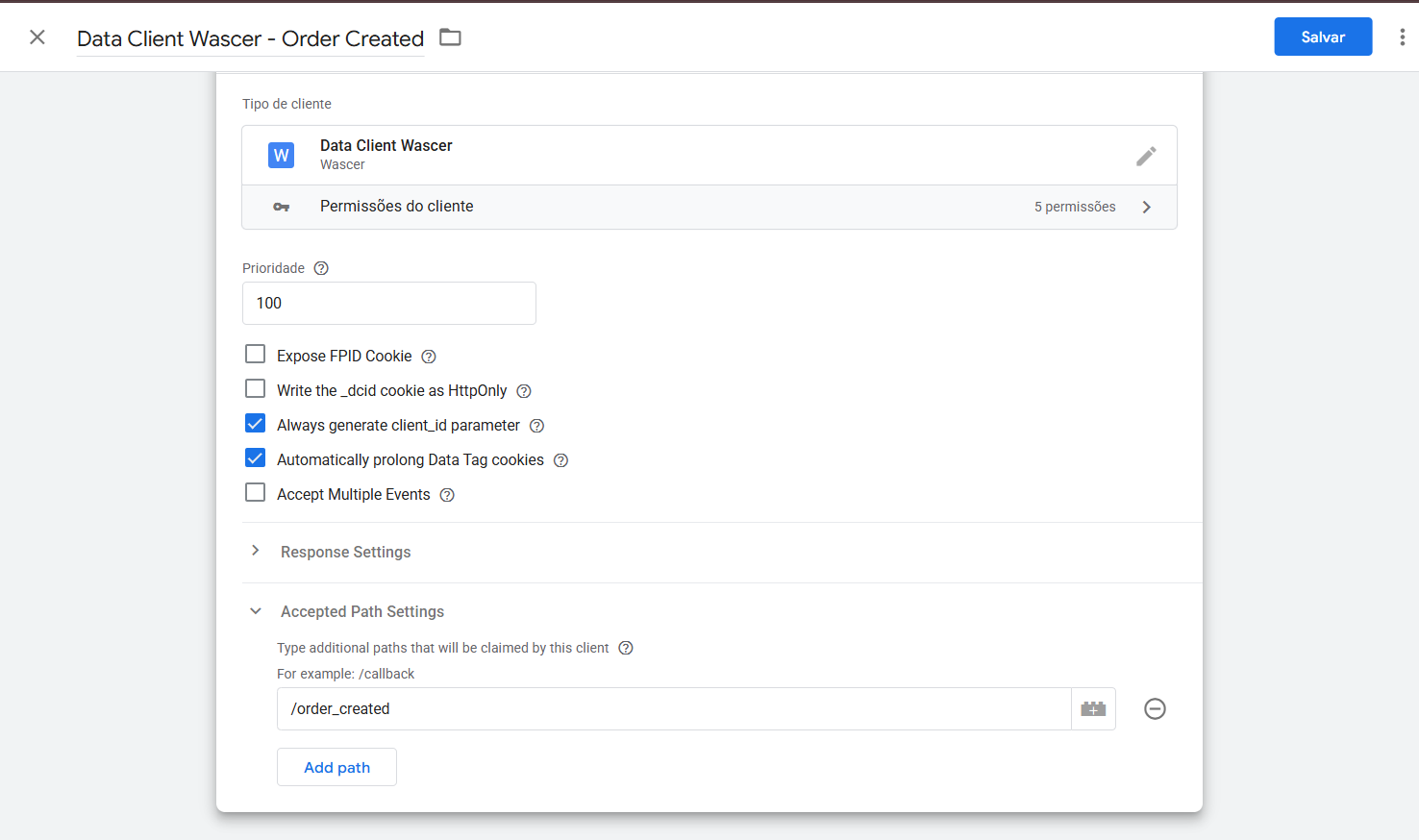
- In Client Configuration, select the Wascer Data Client template.
- Give the client a descriptive name — e.g.:
Wascer Data Client - Order Created. - In
Accepted Path Settings, fill in the path defined in Step 1 — in this example,/order_created. If you are going to use more than one path in the same Client, add them all. - Configure the response options as needed (status code, JSON response, cookie management).
- Save the Client.
5.4. Configure priority (optional, but recommended)
If you have other clients in the container (GA4, Meta CAPI, etc.), set the Wascer Data Client with a priority high enough to claim webhooks before another client tries. Generally, priority 100 is safe for custom webhooks, since GA4/CAPI clients come with lower priorities.
5.5. Publish a workspace version (or test in preview)
- To validate in preview: just save — publishing is not required.
- To use in production: publish a new version of the container after testing.
5.6. Validate in the debugger
- Return to the debugger (with the Wascer Preview Header still active).
- Fire the webhook again.
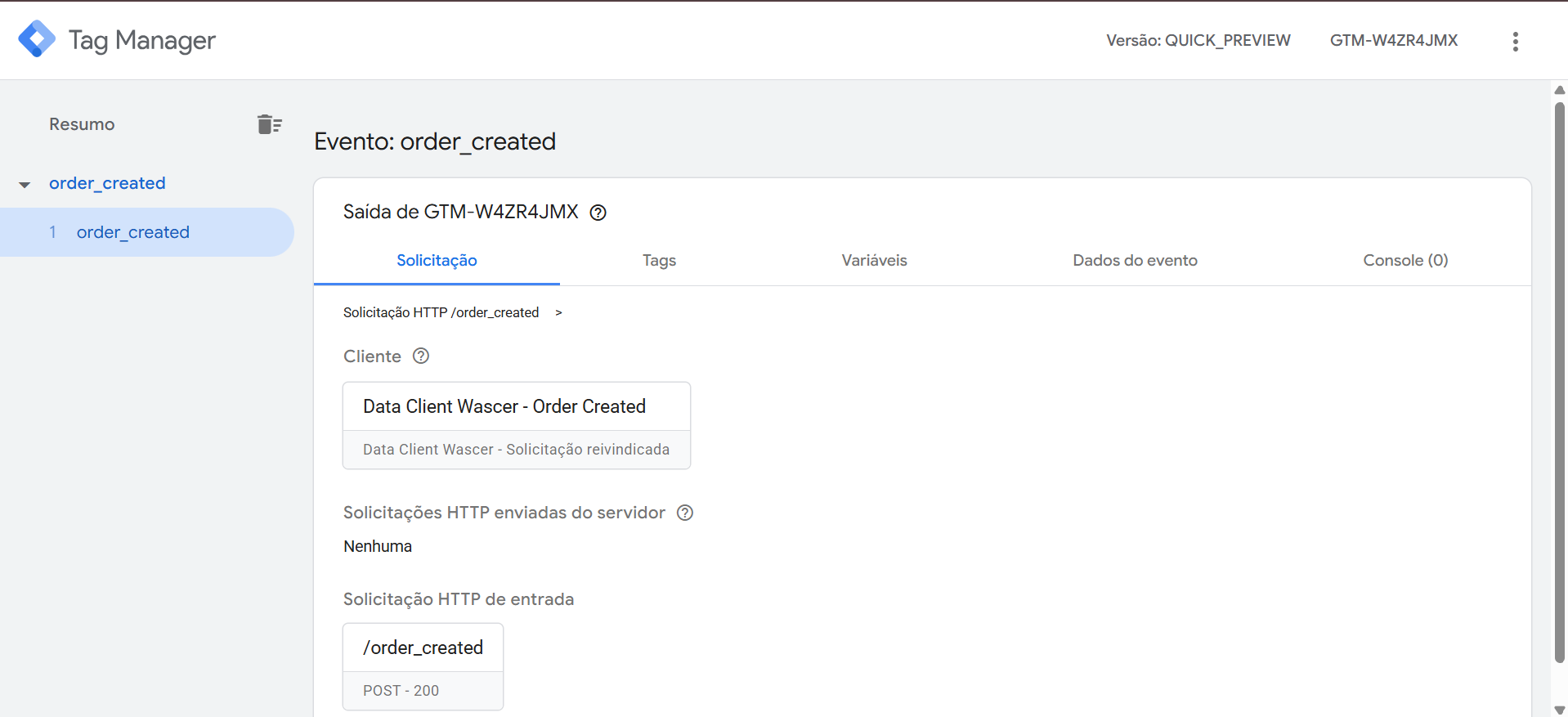
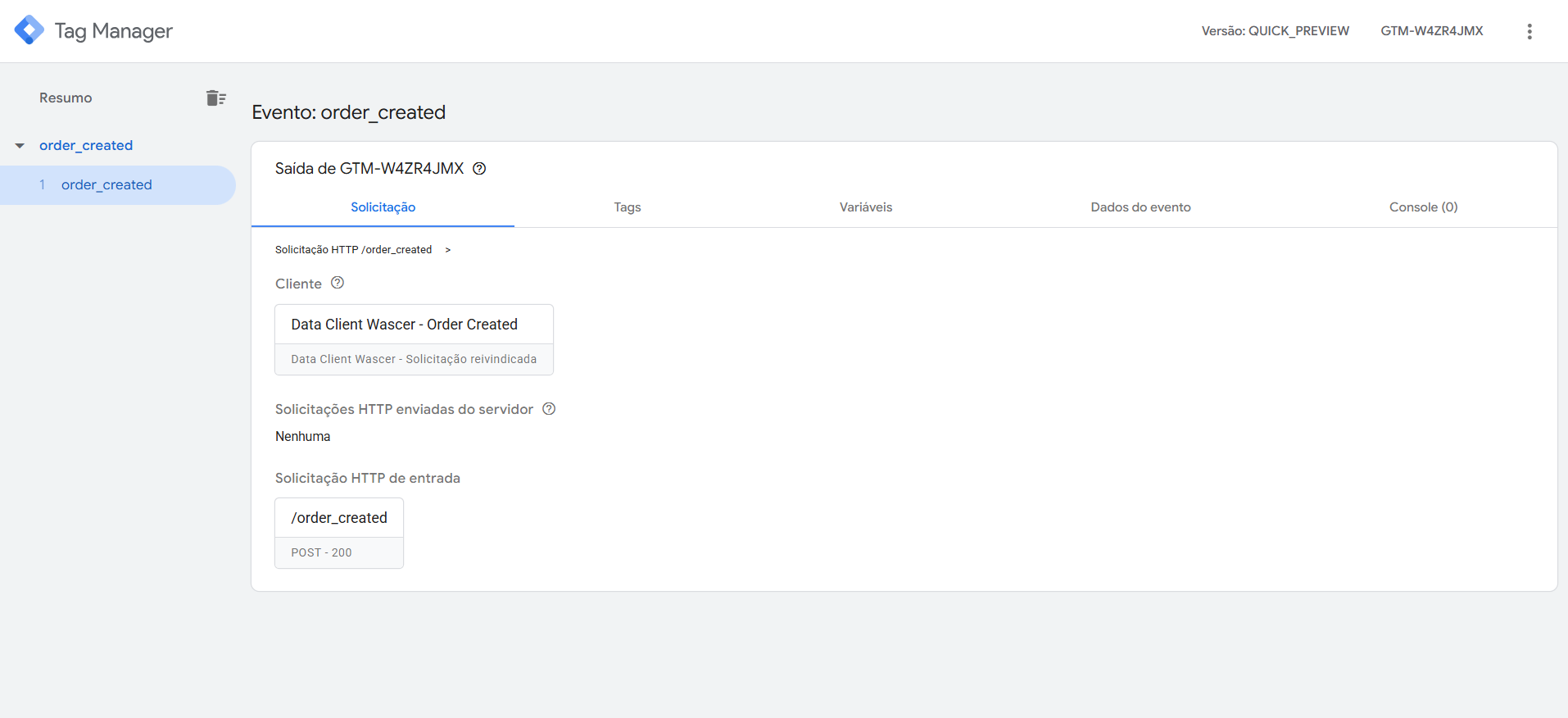
- In the event list, the request should now appear as claimed by the Wascer Data Client.
- Click on the event and inspect the Event Data tab — you will see the payload fields mapped as variables accessible to tags.
6. Step 4 — Use the data in sGTM tags
6.1. Create Event Data type variables
For each payload field you want to use in tags:
- Go to Variables → New → Event Data.
- In Key Path, provide the path of the field in the payload. Examples:
order_id→ capturesorder_idfrom the root JSON.customer.email→ captures the email inside the customer object.items.0.price→ captures the price of the first item.
- Give it a descriptive name (e.g.,
evt - order_id) and save.
6.2. Create a trigger for the event
- Go to Triggers → New → Custom Event.
- In Event Name, use the event_name value sent in the payload (e.g.,
order_created). - Save the trigger with a clear name (e.g.,
Trigger - Order Created).
6.3. Configure the destination tags
From here, usage is the same as any other event in sGTM. Common scenarios:
| Destination | Tag to use | Purpose |
| Meta (Facebook) | Meta Conversions API (CAPI) | Send offline / server-side conversions to the Pixel |
| Google Ads | Google Ads Conversion Tracking / Offline Conversion Import | Import offline conversions |
| GA4 | GA4 Server-Side | Register the event in GA4 |
| TikTok | TikTok Events API | Conversions for TikTok campaigns |
| Slack / Telegram | HTTP Request or specific tags | Notify the team about the event |
| Secondary CRM | HTTP Request | Sync data between systems |
In each tag, map the parameters (value, currency, user IDs, etc.) using the Event Data variables created in step 6.1, and associate the trigger created in step 6.2.
7. Validation checklist
Before publishing to production, confirm each item:
☐ The source system fires the webhook successfully (HTTP 2xx status in the response).
☐ The webhook URL uses HTTPS and points to the correct sGTM domain on Wascer.
☐ The webhook path is identical in the source system and in the Wascer Data Client.
☐ The payload arrives with Content-Type: application/json.
☐ In the debugger, the request appears and is claimed by the Wascer Data Client.
☐ The Event Data variables return the expected values (not empty / undefined).
☐ The trigger fires only for the correct event.
☐ The destination tags execute successfully (2xx status in the responses from external APIs).
☐ The Preview Header was removed from the Wascer panel after testing ended.
☐ A new version of the container was published.
8. Common troubleshooting
The webhook does not appear in the debugger
Possible causes:
- Preview Header was not pasted into the Wascer panel / expired — regenerate and inject again.
- The webhook URL is wrong — check the protocol (https://), domain, and path.
- The source system is blocked by a firewall / IP allowlist.
- The webhook was sent before activating Preview in GTM.
How to diagnose: check the source system logs for the HTTP status returned by sGTM. If it is 2xx but does not appear in the debugger, the problem is certainly the Preview Header. If it is 4xx/5xx, it is a routing or server configuration issue.
The request appears, but is not claimed by any client
Possible causes:
- Wascer Data Client path is different from the path sent.
- Data Client saved in the workspace but the preview has not been updated yet — close and reopen the Preview.
- Another client is claiming the request with higher priority — adjust the priorities.
The Wascer Data Client claims, but the fields come up empty
Possible causes:
- Payload arrived with incorrect Content-Type (e.g., application/x-www-form-urlencoded instead of application/json).
- The JSON structure is different from the Key Path configured in the variables — use the Request → Body tab in the debugger to check the raw JSON and adjust the Key Path.
- Special characters / broken encoding — validate the JSON in an online lint.
I get 405 Method Not Allowed
sGTM is rejecting the HTTP method. Confirm that the source system is sending POST (or GET, if applicable) and that the Wascer Data Client is configured to accept that method.
I get 200 OK but the destination tag does not fire
- Verify that the trigger is using the correct event_name.
- Confirm that the tag is associated with the trigger.
- Look at the Tags tab of the event in the debugger to see the reason each tag fired or not.
Request volume is high and I hit the plan limit
Each Wascer plan has a monthly request quota. If the volume of webhooks grows, consider upgrading — check the available plans at wascer.com/en/pricing. For high volumes or a dedicated environment, talk to the sales team.
Useful references
Was this helpful?
Thanks for your feedback!