Boosters
Google Service Account
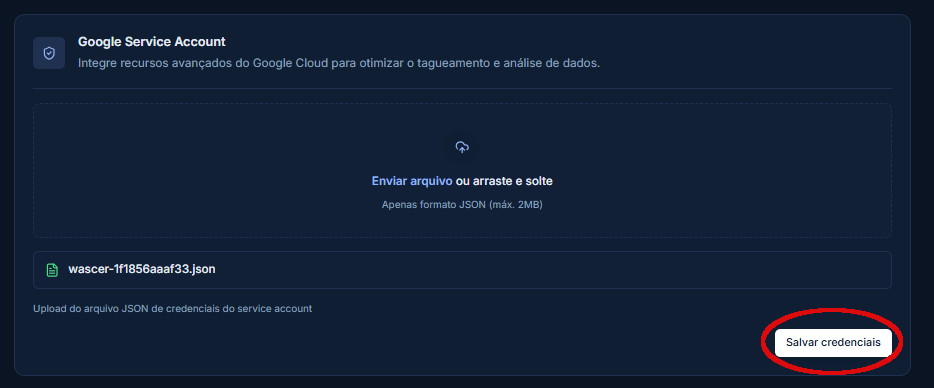
Google Service Account in the Boosters tab with JSON upload:
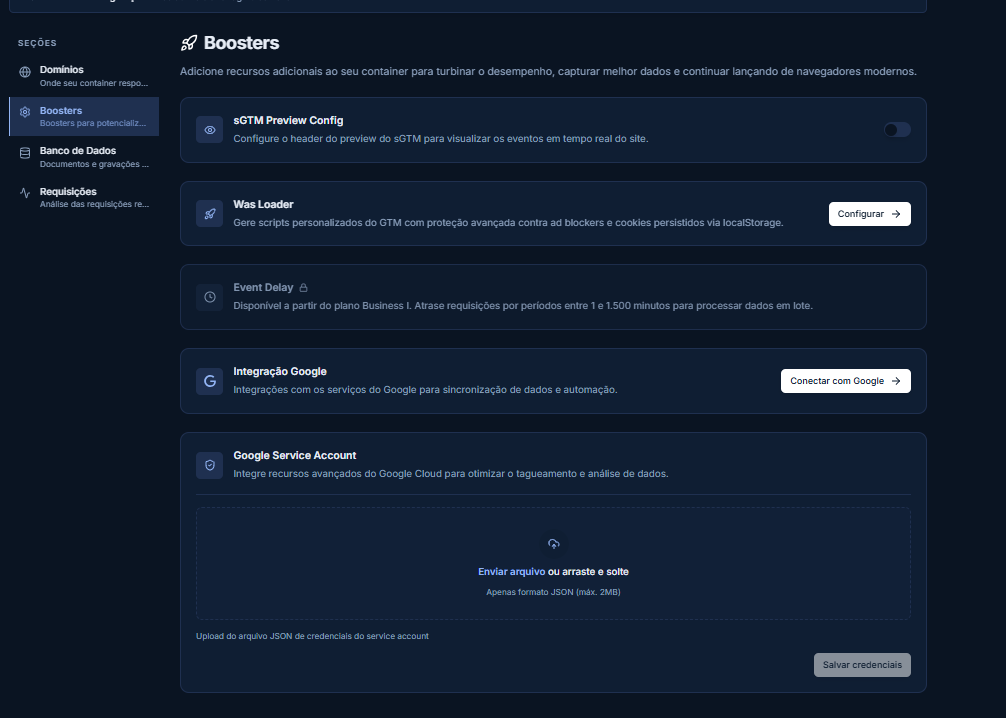
Integrate advanced Google Cloud resources to optimize tagging and data analysis.
Overview
Google Service Account is an extra optimization that allows you to connect a Google Cloud Platform service account to your sGTM container on Wascer. With this integration, you enable programmatic access to Google APIs such as BigQuery, Firestore, Google Sheets, and Google Ads directly from server-side tags, without the need for manual authentication or OAuth token management.
This feature is essential for advanced scenarios such as writing events to BigQuery, reading data from Firestore for event enrichment, sending offline conversions to Google Ads, and syncing data with Google Sheets. Without a configured service account, these integrations require complex OAuth flows and tokens that expire periodically.
The setup is done directly in the Wascer panel: simply upload the service account credentials JSON file and save. Wascer manages authentication securely and transparently.
Benefits
- Programmatic access to Google APIs (BigQuery, Firestore, Sheets, Ads) without manual OAuth.
- Eliminates the need to periodically renew authentication tokens.
- Enables writing events to BigQuery for advanced data analysis.
- Enables reading from Firestore for real-time event enrichment.
- Secure integration: credentials stored in encrypted form on Wascer.
- Compatible with all server-side tags that require Google authentication.
- See the Extra Optimizations > Google Service Account tab in the Wascer panel.
How it works
Google Service Account functions as a machine identity that allows the sGTM container to authenticate with Google APIs without human interaction. When you upload the credentials JSON file, Wascer stores it securely and uses it to generate access tokens on demand.
Each time a server-side tag needs to access a Google API (e.g., write to BigQuery, read from Firestore), Wascer automatically uses the service account credentials to authenticate the request. Tokens are automatically renewed before they expire, ensuring continuous operation without interruptions.
How to activate / configure
How to connect a Google Service Account to Wascer
With the help of a Google Service Account connected to Wascer, you can integrate the server Google Tag Manager (sGTM) with BigQuery and Firestore, enabling writing and reading data directly from your server-side container.
What is a Google Service Account and what possibilities does it bring to sGTM?
Google Service Accounts are special accounts used by applications to make authorized calls to Google APIs. With a Service Account connected to your sGTM container on Wascer, integration with BigQuery and Firestore becomes possible.
Firestore
Firestore is a Google NoSQL database that allows you to write, read, and sync data in real time. In the context of sGTM, it can be used to enrich the data sent through server-side tags.
For example, with the help of the user ID, you can extract additional user data from Firestore and send more user parameters to Facebook CAPI, which will increase the Facebook Event Match Quality Score.
The Firestore Lookup variable allows you to extract specific values from a Firestore document for use in your sGTM tags and variables.
Note: Firestore is not a free service. Check pricing at cloud.google.com/firestore/pricing.
BigQuery
Using server Google Tag Manager, it is possible to write data directly to BigQuery from sGTM tags or clients. Previously, BigQuery integration was only available to Google Analytics 360 users.
With the launch of sGTM and GA4, all users can send data to BigQuery for free or at a more affordable cost than before.
Note: BigQuery is also not free. Check pricing at cloud.google.com/bigquery/pricing.
How to connect Google Service Account to Wascer?
Step 1 | Activate Booster
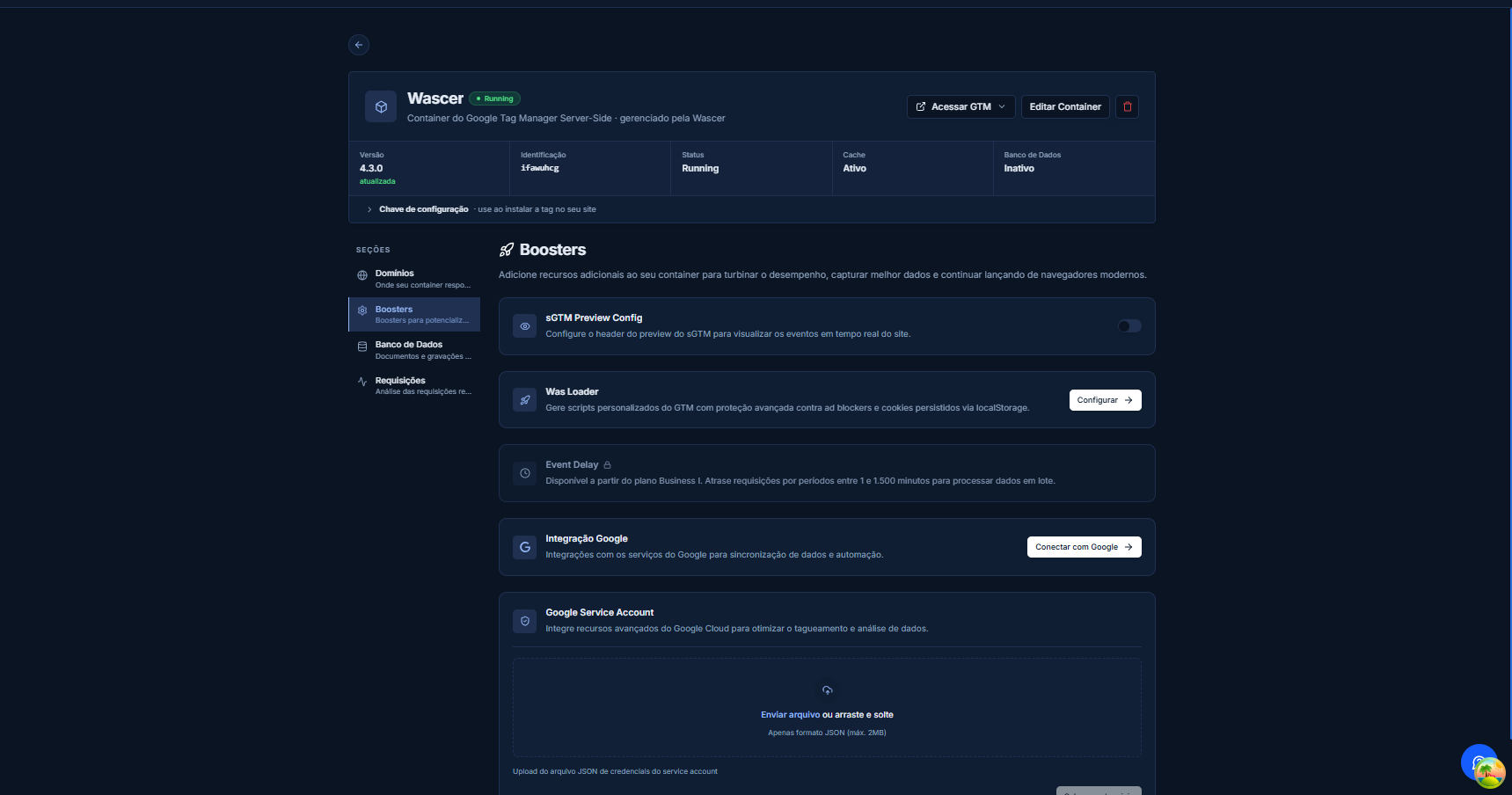
1. Log in to your Wascer account and select your sGTM container from the dashboard.
2. Navigate to the Boosters tab.
3. Locate the Google Service Account panel.
Step 2 | Obtain the service account credentials file
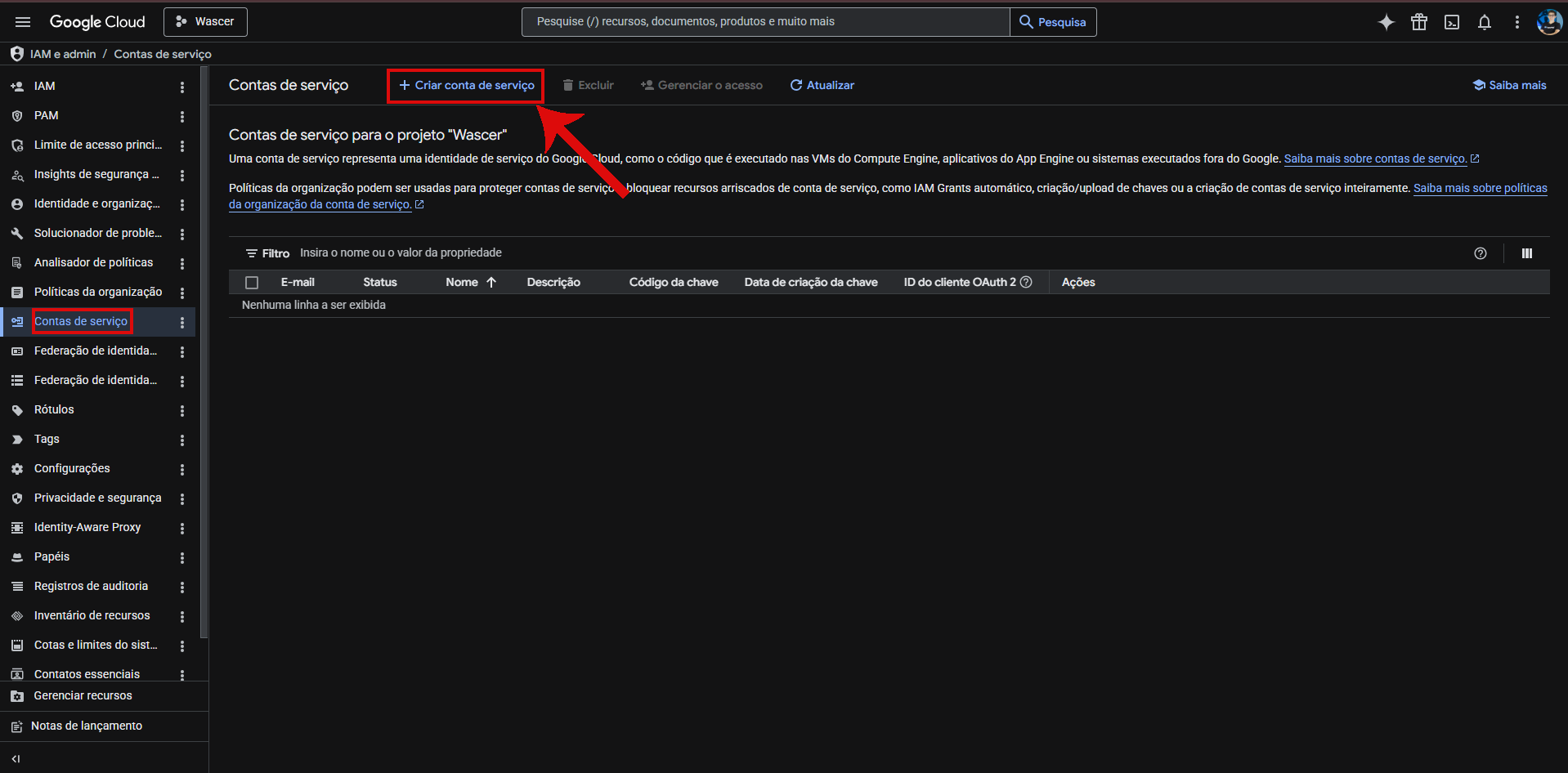
1. Open Google Cloud Console and go to IAM & Admin → Service Accounts. Click Create service account.
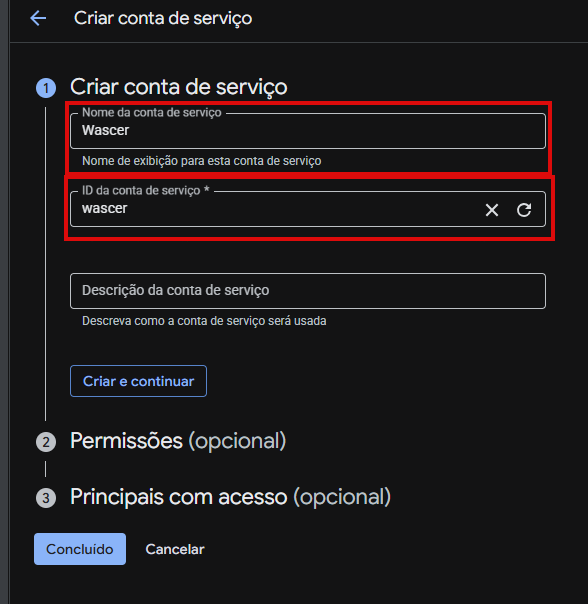
2. Enter a name and click Create and continue.
3. Assign the appropriate Role:
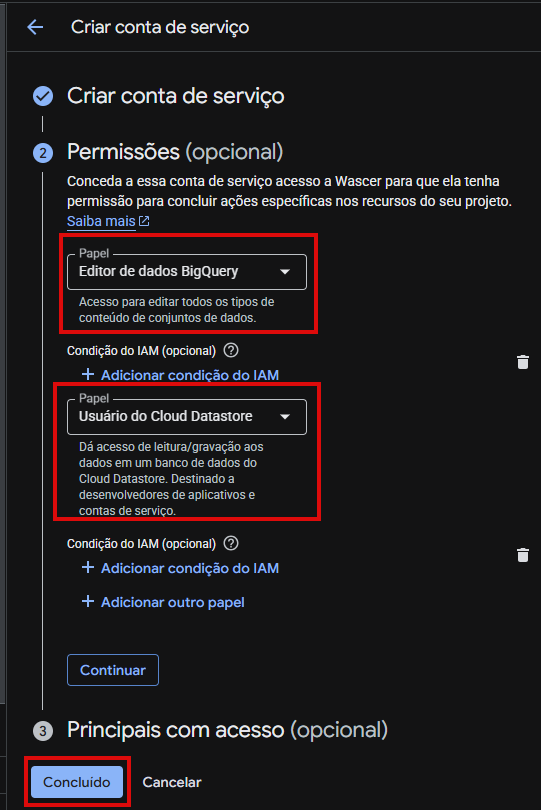
- BigQuery Data Editor for BigQuery access
- Cloud Datastore User for Firestore access
- Both roles if you need access to both services
4. Click Continue and Done.
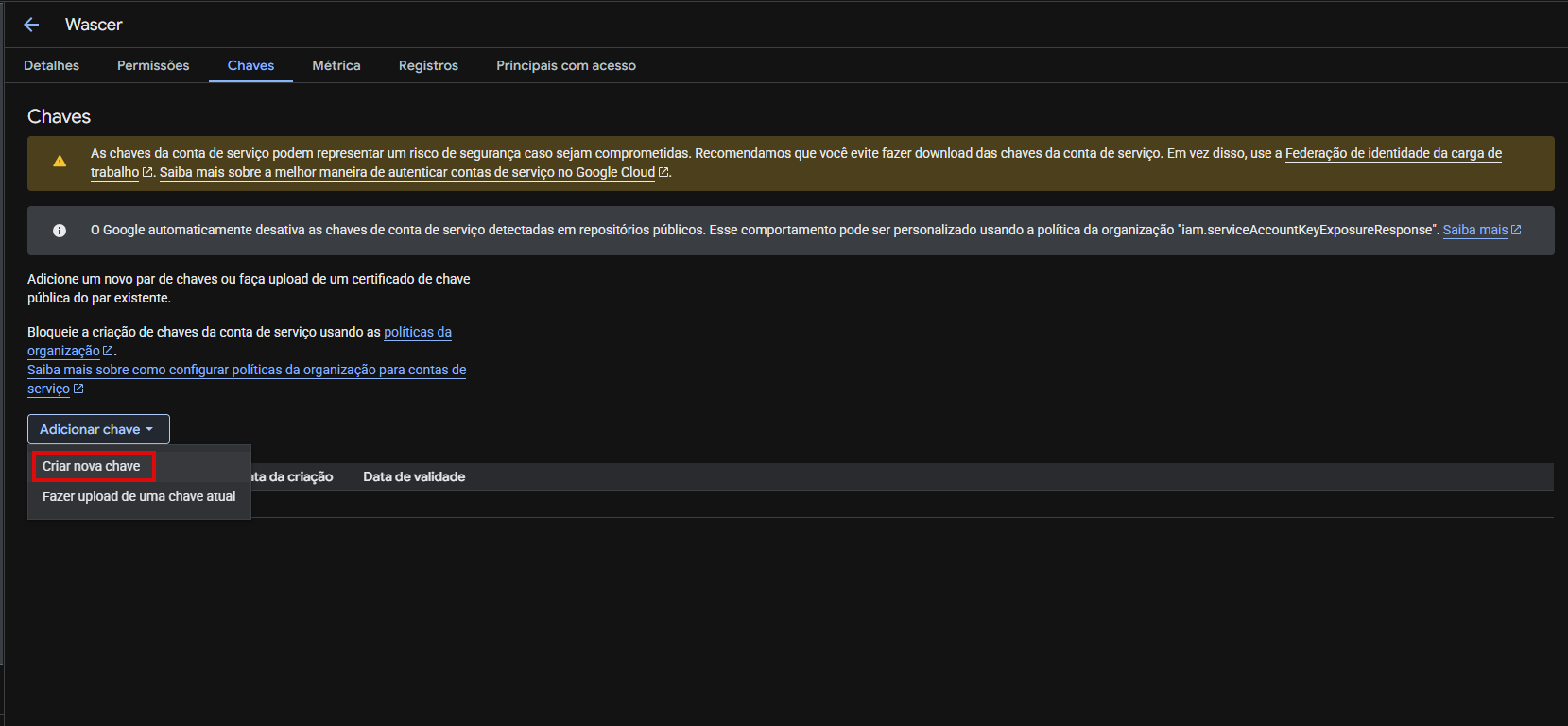
5. Click the newly created account, open the Keys tab, and click Add key → Create new key.
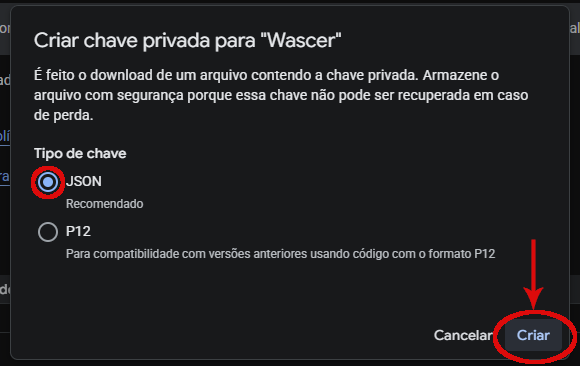
6. In the pop-up, select JSON and click Create. A JSON file will be downloaded to your computer.
7. Back in Wascer, click Select file and upload the JSON file you downloaded.
Step 3 | Configure the services in Google Cloud
BigQuery Setup
1. In your sGTM container, open Templates, click Search Gallery, and add the Write to BigQuery tag from the Template Gallery (or import it from GitHub).
2. Create a new tag using this template and configure the data to be written:
All Event Data — writes all event data available in sGTM to your BigQuery table.
Only fields that match the tableschema will be accepted; the rest will be discarded.
Custom Data Only — writes only the specific fields you define, with no default event data.
3. Optionally, enable Add Event Timestamp to include a millisecond timestamp. The BigQuery column must be of type INTEGER.
Configure the trigger and save the tag.
Firestore Setup
1. Open the Firebase Console (console.firebase.google.com), click Create project, and select the same project you used for the Service Account.
2. Follow the Firebase instructions to create a database. Choose a Cloud Firestore location that matches your sGTM server location (you can check the server location in the container settings on Wascer). When selecting the starting mode, choose Production.
3. Click Start a collection and define the collection path that will be used in your tag (for example, purchase).
4. In your sGTM container, open Templates, click Search Gallery, and add the Firestore Writer tag from the Template Gallery.
5. Create a new tag using this template and configure:
Firebase Path — path to the Firestore collection or document. Must not start or end with /. If pointing to a collection, a document with a random ID will be created automatically.
Add Event Data — sends all sGTM event data to the Firestore document. Custom Data fields override Event Data fields where they overlap.
Merge document keys — merges incoming data with the existing document instead of overwriting it entirely.
Override Firebase Project ID — by default, the tag reads the project ID from the GOOGLE_CLOUD_PROJECT environment variable. Enable this option only if you need to use a different Firebase project.
Skip null or undefined values — allows skipping items from customDataList with null or undefined values.
Add Timestamp — adds a millisecond timestamp to the document.
6. Use Custom Data to add or override specific fields, such as user_email or user_id. If sending user data to production, make sure to hash it before writing.
7. Configure the trigger and save the tag.
8. To read data back from Firestore, create a Firestore Lookup variable in sGTM.
9. Set the Collection Path and define a query condition (for example, match user_id in Firestore against a _gidvariable in sGTM) to retrieve stored values and use them in other tags.
Step 4 | Testing
Verify that the connection is working by triggering a test event through your sGTM container and checking that the data arrives at the expected destination:
For BigQuery: Navigate to your dataset in the BigQuery console and confirm that a new row appears after the test event fires.
For Firestore: Open your Firestore database in the Cloud Console and verify that the relevant document was created or
updated. Availability Available on all plans: Free, Starter, Pro, Business, Enterprise
Avabillity
Avalable in every plan: Free, Starter, Pro, Business, Enterprise
Was this helpful?
Thanks for your feedback!