Boosters
Event Delay
Delay events received via webhook and fire them after a configured interval.
Overview
Event Delay lets you hold events received by the sGTM container for a custom interval of 1 to 1,500 minutes (up to 25 hours) before they are processed. This matters whenever conversion data needs to stay in sync with business processes that don’t happen instantly payment confirmation, fraud screening, order approval, and so on.
Without Event Delay, purchase events fired at checkout can inflate your conversion numbers: orders that get canceled for fraud, bank slips that never clear, and declined credit cards all end up counted as sales. The result is an artificially high ROAS and budget decisions built on inaccurate data.
With Event Delay, you set a waiting period (say, 30 minutes for card validation or 48 hours for bank slip settlement) before the event is processed and pushed to the ad platforms. That way, only confirmed conversions are reported to Google Ads, Meta, and TikTok.
Benefits
- Stops duplicate or premature conversions from being fired to ad platforms.
- Lines up the conversion timestamp with the actual payment or order confirmation.
- Custom interval of 1 to 1,500 minutes to fit any business workflow.
- Improves ROAS accuracy by filtering out conversions that get canceled or refunded later.
- Cuts noise in Smart Bidding and Meta Advantage+ optimization data.
- Works with any event source — webhooks, APIs, and SDKs.
How it works
Event Delay sits as a time buffer between when an event is received and when the sGTM container processes it. The moment an event hits the delay endpoint, Wascer stores it temporarily and schedules processing for the configured interval later.
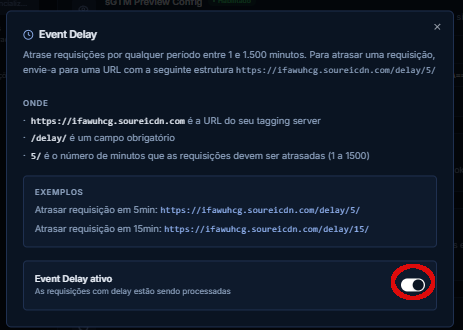
The delay URL follows this format: https://{sgtm-domain}/XXXXXXXXXXX/delay/{minutes}/{path}. The {minutes} parameter defines the waiting time (1 to 1,500), and {path} is the original request endpoint.
Example: https://sst.yoursite.com.br/XXXXXXXXXXX/delay/60/collect sends the event for processing 60 minutes after receipt.
Note that the device that sent the original request receives an immediate response from the delay endpoint (status 200), but the sGTM container only processes the event after the configured interval. That means the event won’t show up in Preview Mode right away — it will be processed and fired at the scheduled time.
How to enable / configure
- Open the Wascer dashboard and select your sGTM container.
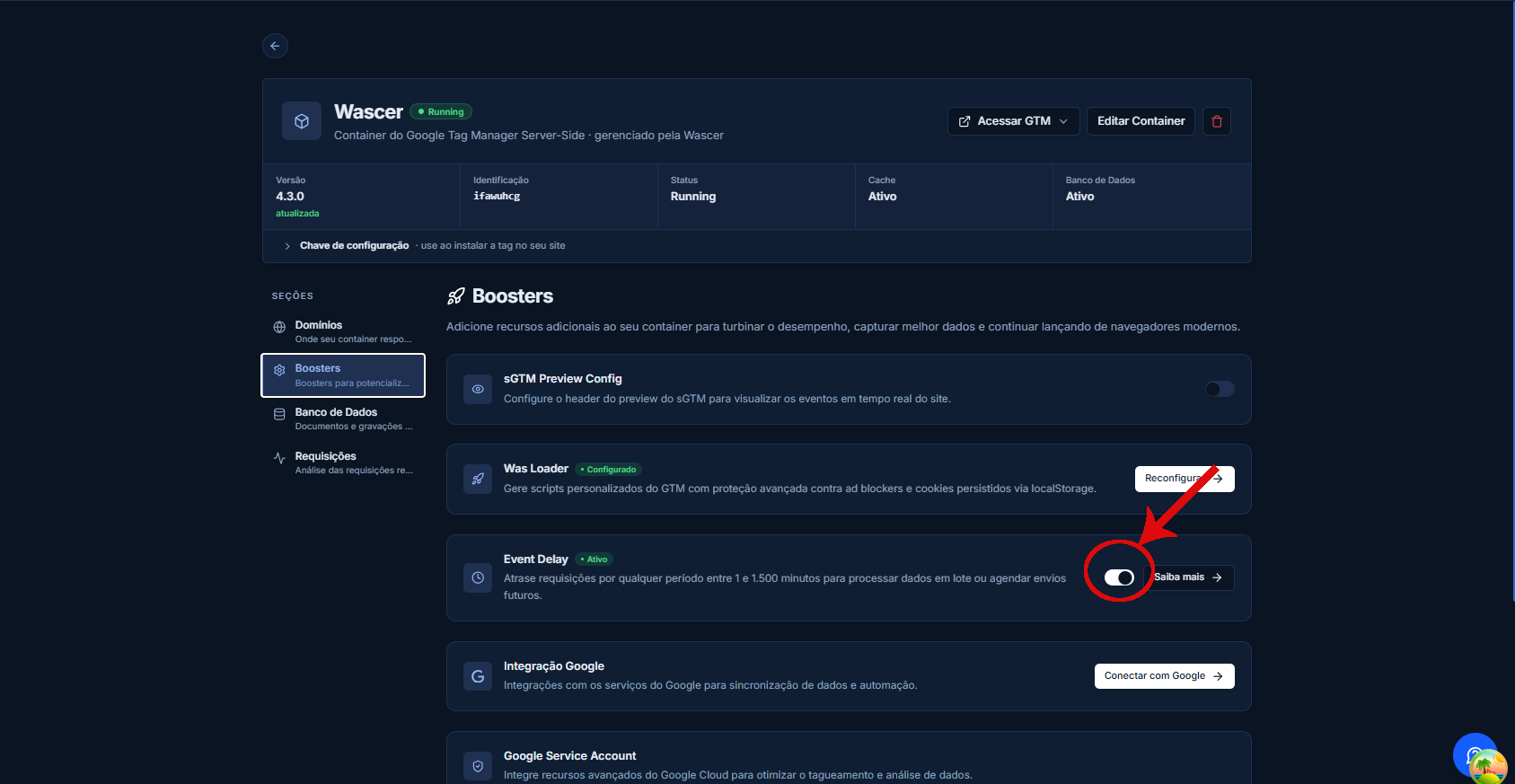
- Go to Boosters > Event Delay.
- Click Enable and turn on the toggle.
The Event Delay card in the Boosters tab:
- Click Save.
- In your implementation (GTM tag, webhook, or API call), change the destination URL to include the delay segment:
- Format: https://{your-sgtm-domain}/XXXXXXXXXXX/delay/{minutes}/{original-path}
- Example: for a 30-minute delay on the /collect endpoint:
- https://sst.yoursite.com.br/XXXXXXXXXXX/delay/30/collect
- Test by sending an event and checking in Logs in Wascer that it was processed after the configured interval.
The Event Delay modal shows URL examples and the activation toggle:
Use cases
E-commerce with bank slip (boleto) payments: an online store that accepts boleto set a 2,880-minute delay (48 hours) on purchase events from boleto orders. That way, only orders that actually clear hit Google Ads and Meta, and ROAS isn’t inflated by unpaid orders.
Marketplace with fraud screening: a marketplace that runs automatic fraud validation (average time: 15 minutes) set a 20-minute delay. Fraudulent orders get canceled before the conversion is sent to the platforms, which improves the quality of the optimization data.
Availability
Available only on plans: Business and Enterprise
Was this helpful?
Thanks for your feedback!