Boosters
Geo Location
Forward your visitor’s location, already detected by Cloudflare, to your tagging server. No extra GeoIP API, no data exposed to the browser.
Overview
Wascer already sits in front of all your traffic and detects where each visitor is accessing from: country, region, city and postal code, at no extra cost and with no performance impact. With Geo Location enabled, Wascer normalizes that data into its own header contract (X-GEO-*) and delivers it to your sGTM container on every request, ready to use in variables, triggers and tags.
Benefits
- Visitor location right at your tagging server, with no third-party GeoIP API to configure.
- No location data ever touches the browser: it never leaves the Cloudflare → server path.
- Live in seconds: the change takes effect within 5 seconds, with no container restart and no new deploy.
- Geographic segmentation of tags and triggers, enriching conversion events, and consent/privacy rules by region.
How It Works
- Wascer resolves the visitor’s country, region, city and postal code from the IP, at the edge.
- Wascer normalizes that data into the X-GEO-* contract and forwards it to your sGTM container on every request, never to the public googletagmanager.com.
- Any X-GEO-* header that happens to arrive from the browser is stripped before forwarding: Cloudflare is the only trusted source.
Headers sent
| Header | Content |
| X-GEO-Country | Country code (ISO 3166-1 alpha-2) |
| X-GEO-Country-Name | Full country name |
| X-GEO-Region | Region/state |
| X-GEO-City | City |
| X-GEO-PostalCode | Postal code |
| X-GEO-IpAddress | Visitor’s IP |
A header with no value is simply not sent, it never shows up empty.
How to Enable
- Go to the Wascer dashboard → Containers → select your container → Boosters tab.
- Find the Geo Location card.
- Turn on the switch. The badge changes to Active and the change takes effect within seconds.
- (Optional) Click Learn more to see the full list of headers sent and where to use them.

“Geo Location” card in the Boosters tab, disabled. Click the highlighted switch to enable it.

Switch enabled, “Active” badge.
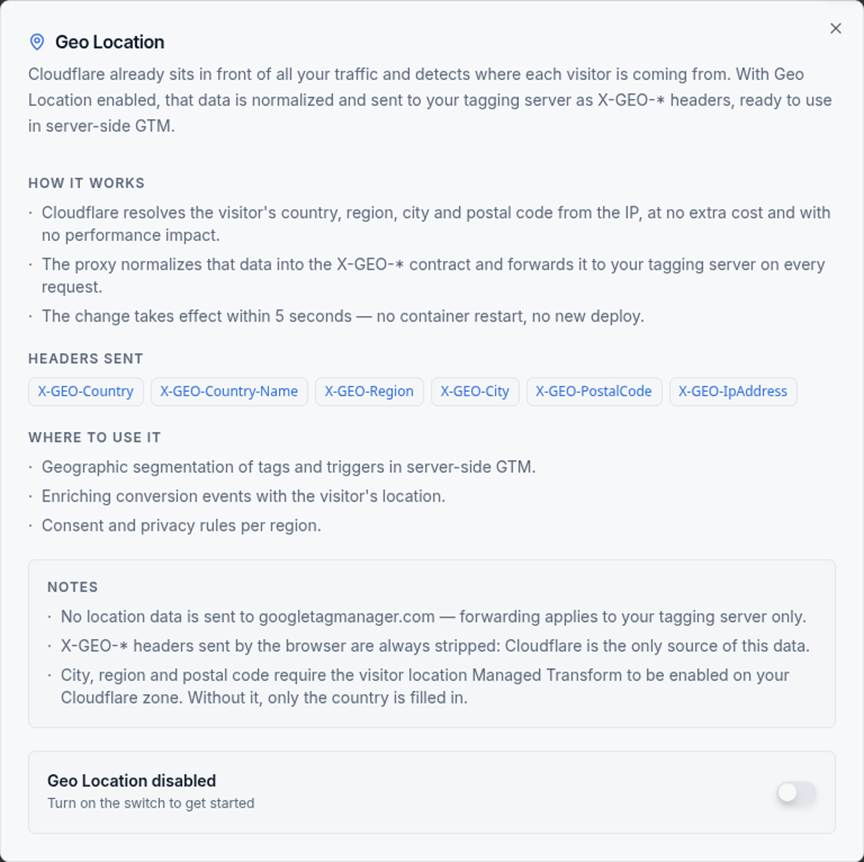
“Learn more” dialog: how it works, the 6 X-GEO-* headers sent, where to use it, and notes.
sGTM configuration
In your Server-Side Google Tag Manager container:
- Go to Variables → New → “Request” category → type Request Header.
- In the Name field, enter, for example, X-GEO-Country.
- Name the variable (e.g. geo – country) and click Save.
- Repeat for any other headers you want to use (X-GEO-City, X-GEO-Region, etc.).
- Use the variable in any trigger or tag, for example, a trigger condition geo – country equals BR.
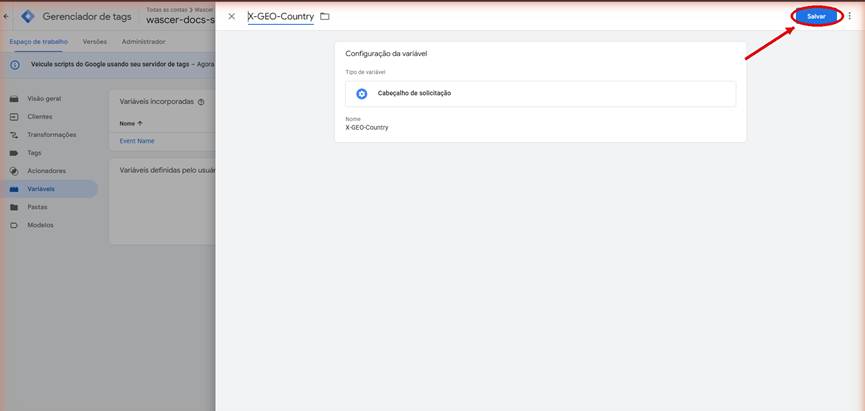
Creating the variable in server-side GTM: type “Request Header”, name `X-GEO-Country`. Click Save.
Proof: the headers actually arriving
In the Server-Side GTM debugger (Preview mode), a real request shows every X-GEO-* header filled in, including city and region, confirming the Cloudflare Managed Transform was active for this test:
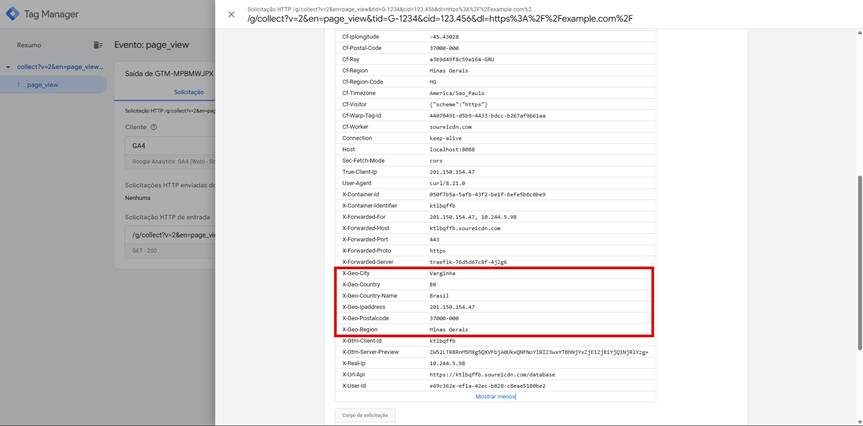
Captured request in the debugger: `X-Geo-Country: BR`, `X-Geo-Country-Name: Brasil`, `X-Geo-Region: Minas Gerais`, `X-Geo-City: Varginha`, `X-Geo-Postalcode`, `X-Geo-Ipaddress`, all delivered to the sGTM container.
Use Cases
- Show different pricing, shipping or legal notices by region without an extra GeoIP call in the tag itself.
- Segment remarketing campaigns and conversion triggers by country/region.
- Apply consent rules (e.g. LGPD/GDPR banners) based on the visitor’s location.
Availability
Available on all plans.
Was this helpful?
Thanks for your feedback!