Boosters
How to use Wascer to save information to Google Sheets
On your Wascer screen, authorize the Google services and the use of Sheets.
After authorizing Google through Wascer, go to your GTM Server Side and click on Templates in the left sidebar.
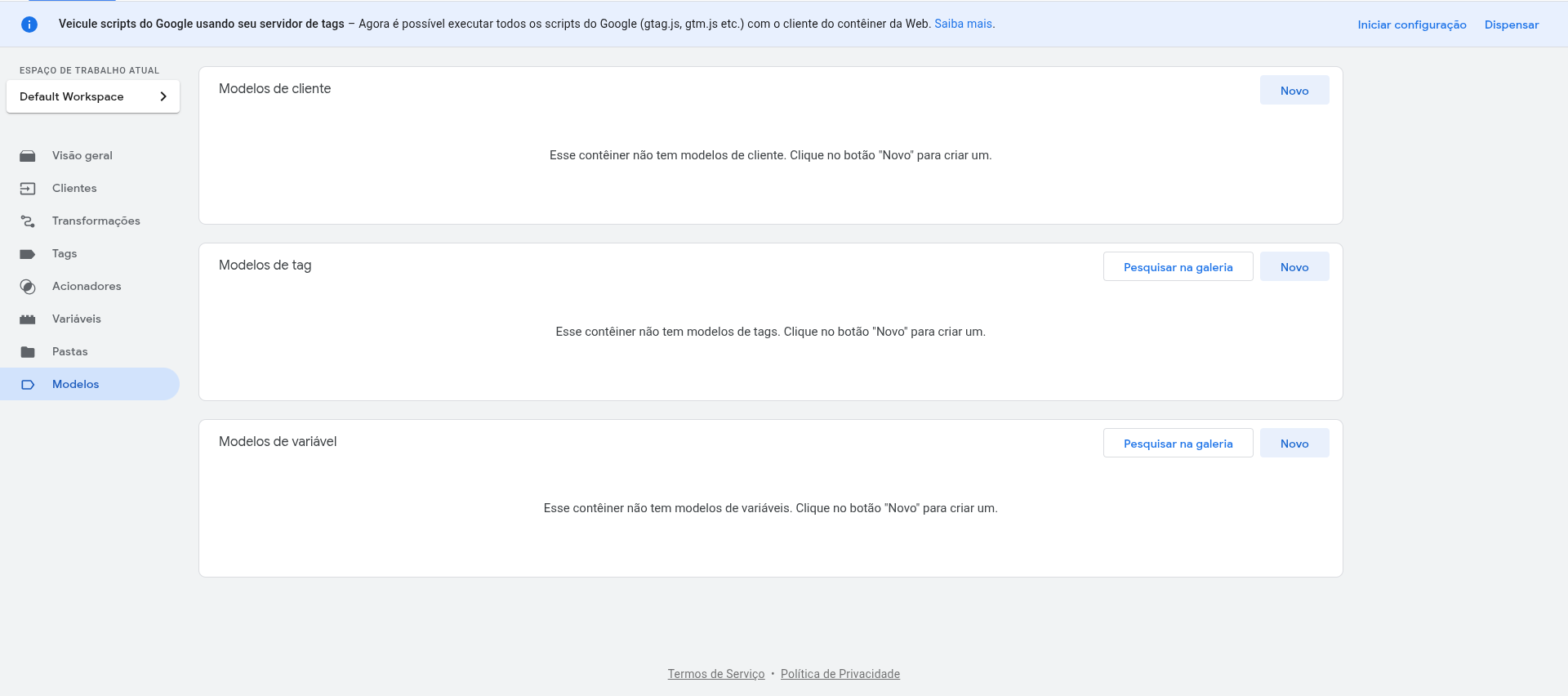
In the Tag Templates section, click New.
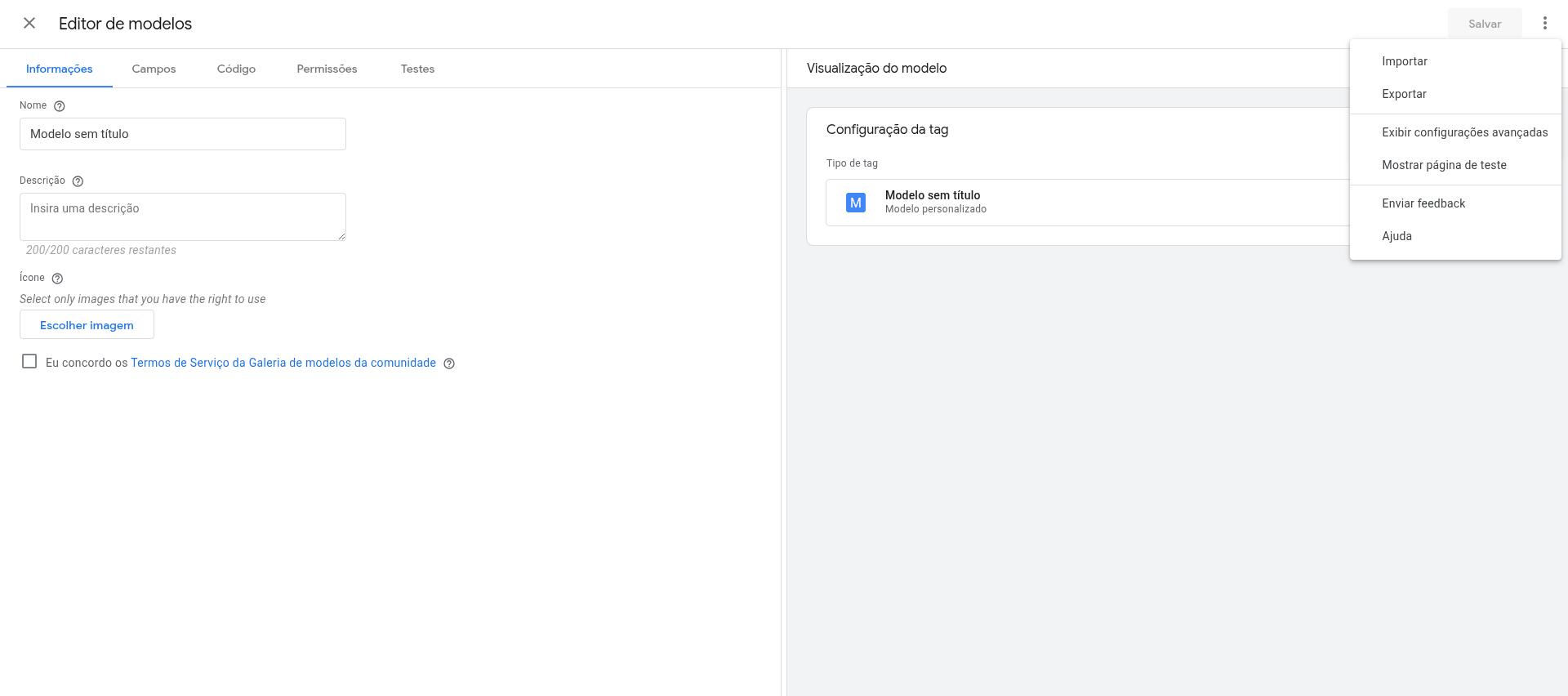
On the screen that opens, click Import and import the google-sheets-template.tpl file. Save.
Back on the GTM screen, navigate to Tags and create a new Tag.
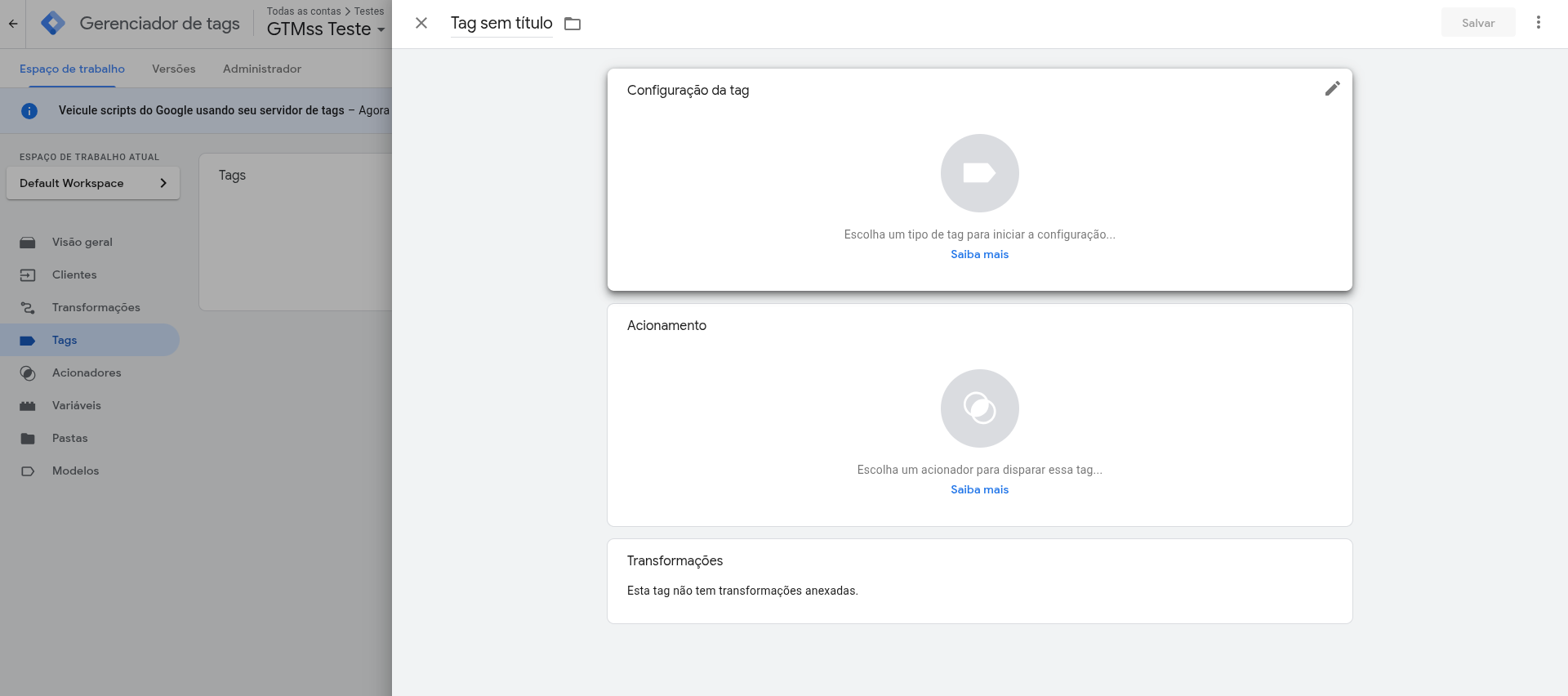
Find the template we just imported: Google Sheets Wascer
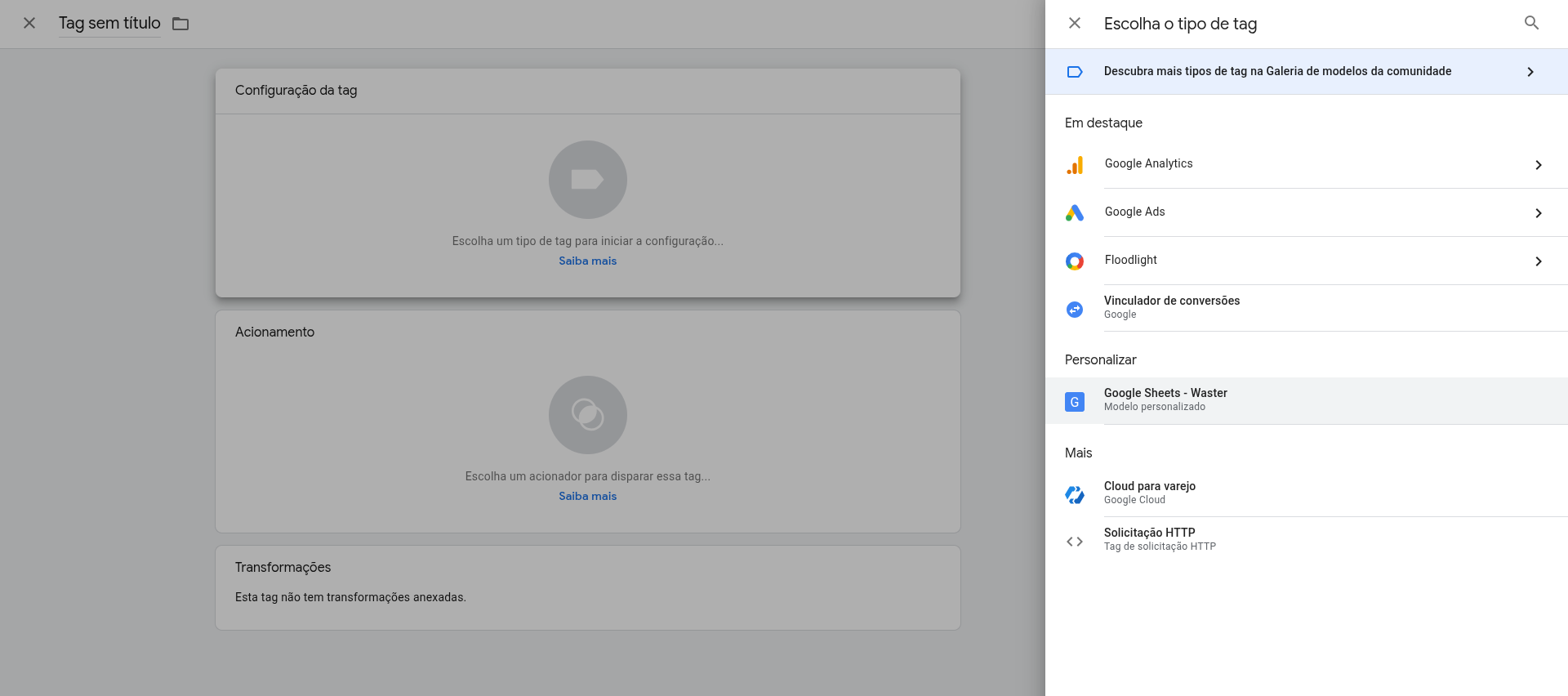
Now we’ll configure the tag:
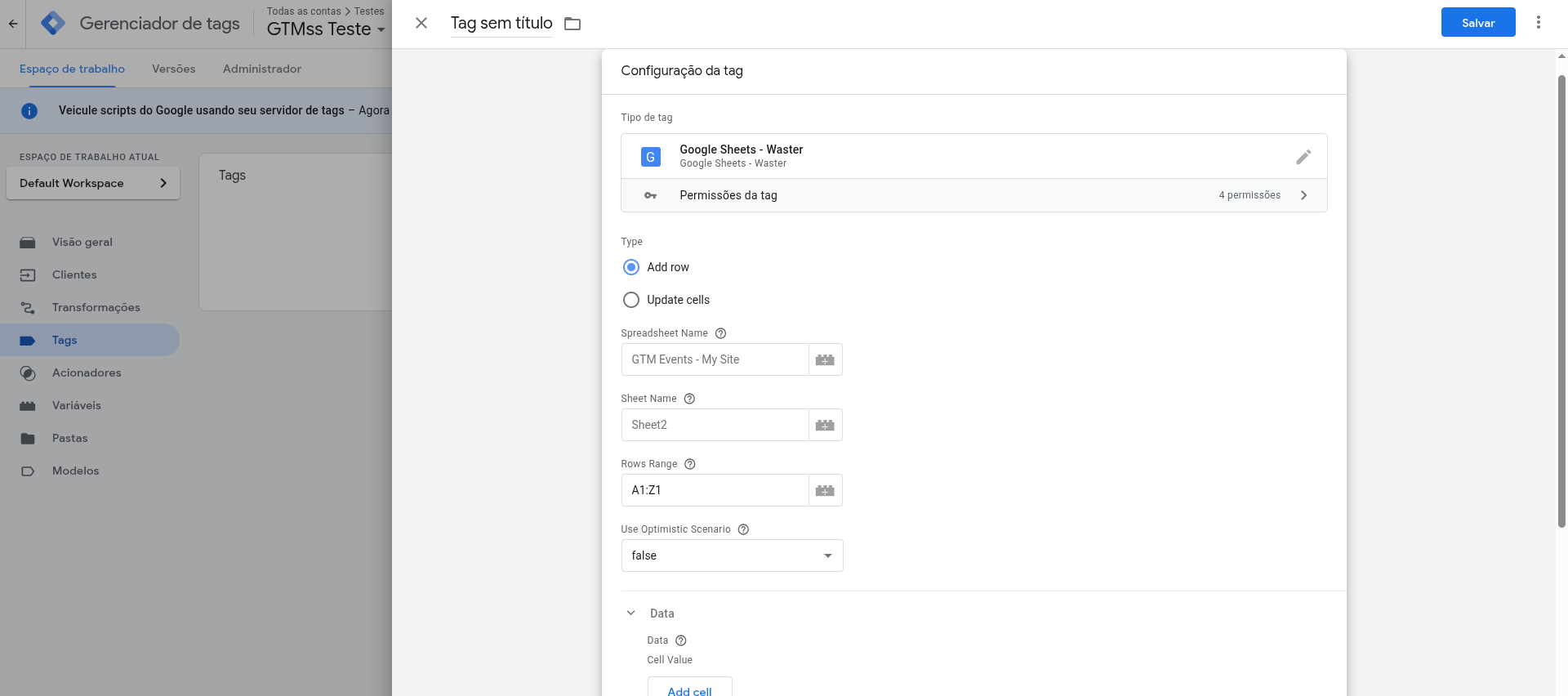
Spreadsheet Name is the name of the file that will be created in your drive. It is not possible to use an existing spreadsheet. Sheet Name is the name that appears at the bottom of your spreadsheet. It’s usually Sheet1.
In Data, select what you want to add on each tag trigger.
For example: if you want us to record the current date and the value of the purchase every time the tag is fired, we’ll type something like {{date}} in the first field, click Add cell, and type something like {{data.purchase.value}} in the second field.
Configure the trigger according to your operation’s flow. After this setup, the tag will already be working and adding new rows to your spreadsheet!
Was this helpful?
Thanks for your feedback!